.png)
What is an One-time Rule
An One-time Rule is only valid for the configured period and is not reusable.
It consists of all the components required for handling out of office
-
The duration of absence
-
The space which the rule is applicable
-
The action to take
-
The coverer to reassign
-
A single message to be added as a comment
One-time rules can be used in scenarios where the covering may be once-off.
It can also be used to override the recurring rules also since its priority level is higher.
We recommend using the Recurring Rules if the OOO handling is the same (e.g. same coverer) for subsequent Out of Office periods.
-
The reusable rules is more convenient as it avoids the need to set up new coverer assignment for every new instance of OOO
-
It also helps in the business continuity with the coverers defined for various spaces
Adding a new One-time Rule
-
The Out-of-Office Assistant can be accessed from the left side bar after logging into Jira.

-
Click on Add One-time Rule

-
Fill in the fields accordingly
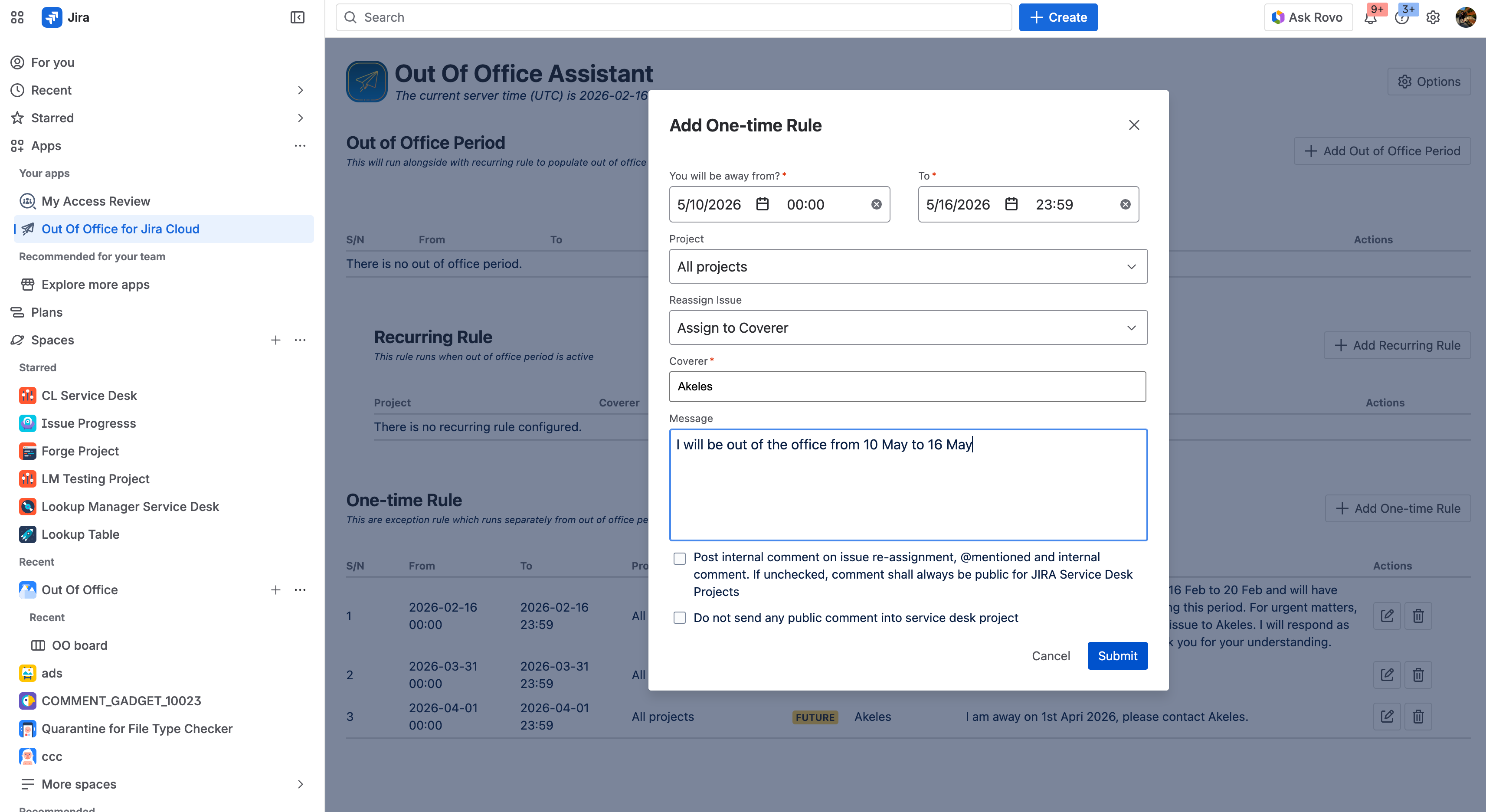
|
Field Name |
Description |
|---|---|
|
You will be away from? |
The start and end date when the person is going to be out of office. If the time is not changed, the duration where the rule is going to be applied is from Start Date 0000hrs to End Date 2359hrs.
|
|
Project |
The Jira project (or space) which this Out of Office rule is applicable.
|
|
Reassign Issue |
Choose an option:
|
|
Coverer |
The user to take over as the assignee |
|
Message |
Your OOO message to be added as comment.
|
|
Post internal comment on issue re-assignment, @mentioned and internal comment. If unchecked, comment shall always be public for Jira Service Desk Projects |
Check this option to add out of office messages as an internal comment in Jira Service Desk Projects.
It is possible to have OOO message as public comment when a fellow teammate @mention you and forget to set it as an internal comment. |
|
Do not send any public comment into service desk project (Only appears if the first checkbox is checked) |
Your automatic replies to public comments will be published as internal comments. Select this option to ensure your OOO messages to always be internal comments so that external customers cannot see them. |
-
Click on OK
Editing existing One-time Rule
-
Under Out of Office Period, locate the One-time Rule you want to edit, click on the pencil icon for that entry

-
Make your changes

-
Click on OK
Deleting existing One-time Rule
Once you’ve clicked the trash icon, you cannot undo deletion
-
Under Out of Office Period, locate the One-time Rule you want to delete, click on the trash icon for that entry

-
Click on the Delete button to confirm
