
Create views and control customer access
Space Administrators can create views in Requests Organizer and expose selected request fields in the customer portal. Administrators can control which customers see each view by assigning one or more space roles.
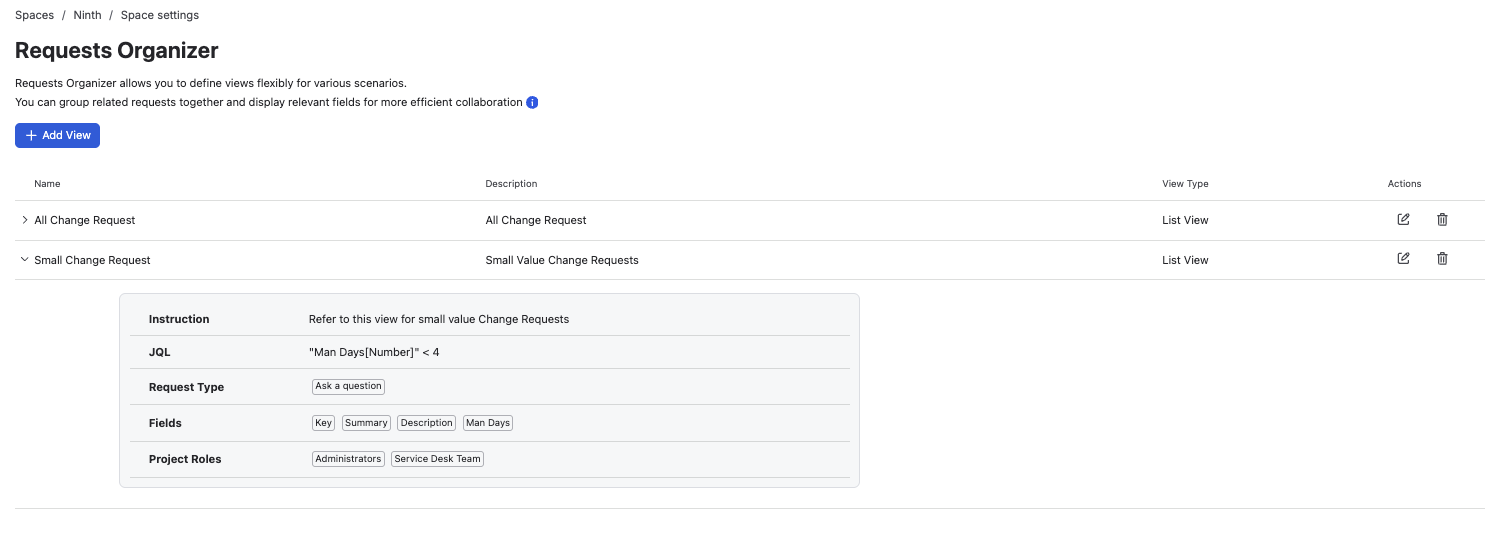
-
In your project, go to Project settings → Apps → Requests Organizer.
-
Click Create view.
-
Enter a View name. Optionally, add a Description (internal only) and an Instruction (shown to customers above the table in the portal).
-
Select the View type:
-
Request View: choose the request type of the single issue to display.
-
List View: enter a JQL query that returns the issues to list.
-
Under Fields, select the fields to show in the portal. You can add up to 10 fields per view.
-
Under Project roles, select one or more roles that can access the view.
-
Click Save.
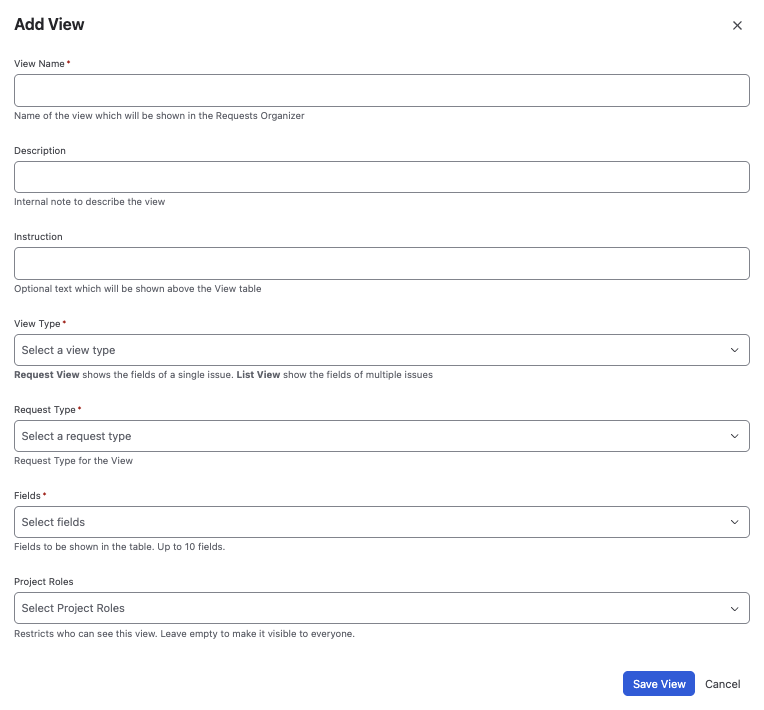
Add View form field reference
|
Field |
Description |
|---|---|
|
View Name |
Enter a name that helps administrators and customers identify the view. |
|
Description |
Add an optional description to explain the purpose of the view. This is for administrators and is not displayed to customers. |
|
Instruction |
Add optional guidance that appears above the table in the customer portal. |
|
View Type |
Choose how requests are displayed: Request View displays fields for one issue only, while List View displays a list of issues returned by the configured JQL query. |
|
JQL |
For a List View, enter a JQL query to define which issues appear in the list. This field is not used for a Request View, which displays one issue only. |
|
Request Type |
For a Request View, select the request type for the single issue that the view applies to. For a List View, use the JQL query to determine which issues are included. |
|
Fields |
Select the fields to expose in the portal. |
|
Project Roles |
Select the project roles that can access the view. Customers assigned to one of these roles can see the view and its configured field values. |
Only users who have permission to access a view can see the custom values configured by administrators.
Edit Request Organizer Instruction Text
Jira Administrators can update the customer-facing instruction and other text configured for a view from the Requests Organizer settings.
-
Click on
edit icon beside the text
-
Edit the instruction text
-
Click Save
