.png)
Introduction
There are 3 different modes of handling uploaded attachments which do not comply with the File Type Policy
-
Warning - Let the upload continue with a warning comment
-
Quarantine - Move the attachment to a Quarantine Jira space
-
Delete - Delete the attachment permanently
This page focuses on working with File Type Checker’s Quarantine Mode
-
What does Quarantine Mode do?
-
When is Quarantine Mode suitable?
-
How to set up Quarantine Mode?
-
Important Security Stuff to take note
-
How should handle the quarantine attachments?
If you are using free plan of Jira Cloud, it is not possible to change the space access settings. Hence, we do not recommend using Quarantine mode for File Type Checker.
What does Quarantine Mode do?
If the File Type checking is enabled, the app will check the file type against the configured list of allowed/denied extensions whenever a file is uploaded to a Jira work item.
When Quarantine Mode is enabled and an unauthorised file is encountered, the app will
-
Create a new work item in the Quarantine Jira Space
-
Attach a copy of the blocked file to the work item
-
Delete the attachment from the original work item
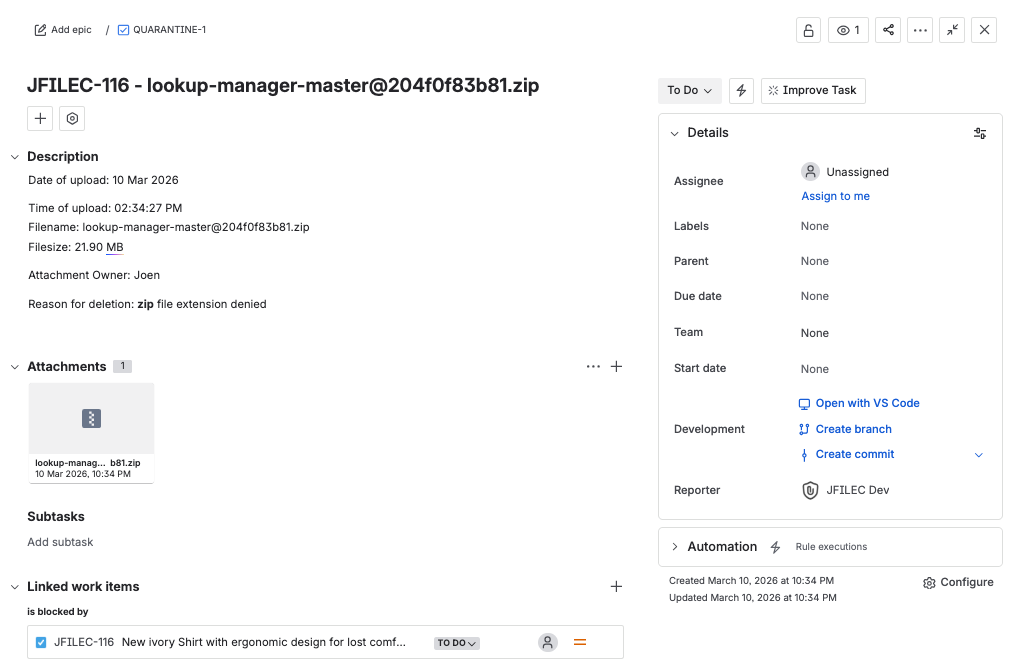
The following information is retained to facilitate investigation
-
Date of upload
-
Time of upload
-
File Name
-
File Size
-
Who uploaded the attachment
-
Reason for quarantine
-
The attachment
-
Source of upload (which work item it was being uploaded)
When to use the Quarantine Mode
The warning mode is useful when the file type policy is newly introduced and requires fine-tuning.
The warning will allow Jira admins to identify what are the file types should be allowed/blocked and refine the policy accordingly.
The deletion mode is only useful for mature teams because the attachments are deleted immediately.
However, it does contains some risk since it is not possible to restore the deleted attachments.
The quarantine mode is the middle ground approach. It is useful when
-
there are high risks of virus spreading so warning may not be feasible
-
the users/customers cannot delete the attachments themselves
-
the users are ignoring the warnings not to upload the unauthorised file types
-
there are frequent cases of false positive deletion which makes deletion mode unsuitable
How to set up Quarantine Mode
-
From the top menu bar, go to Settings > Apps
-
Look for File Type Checker under Apps section on the left sidebar
-
Click the Edit Settings button
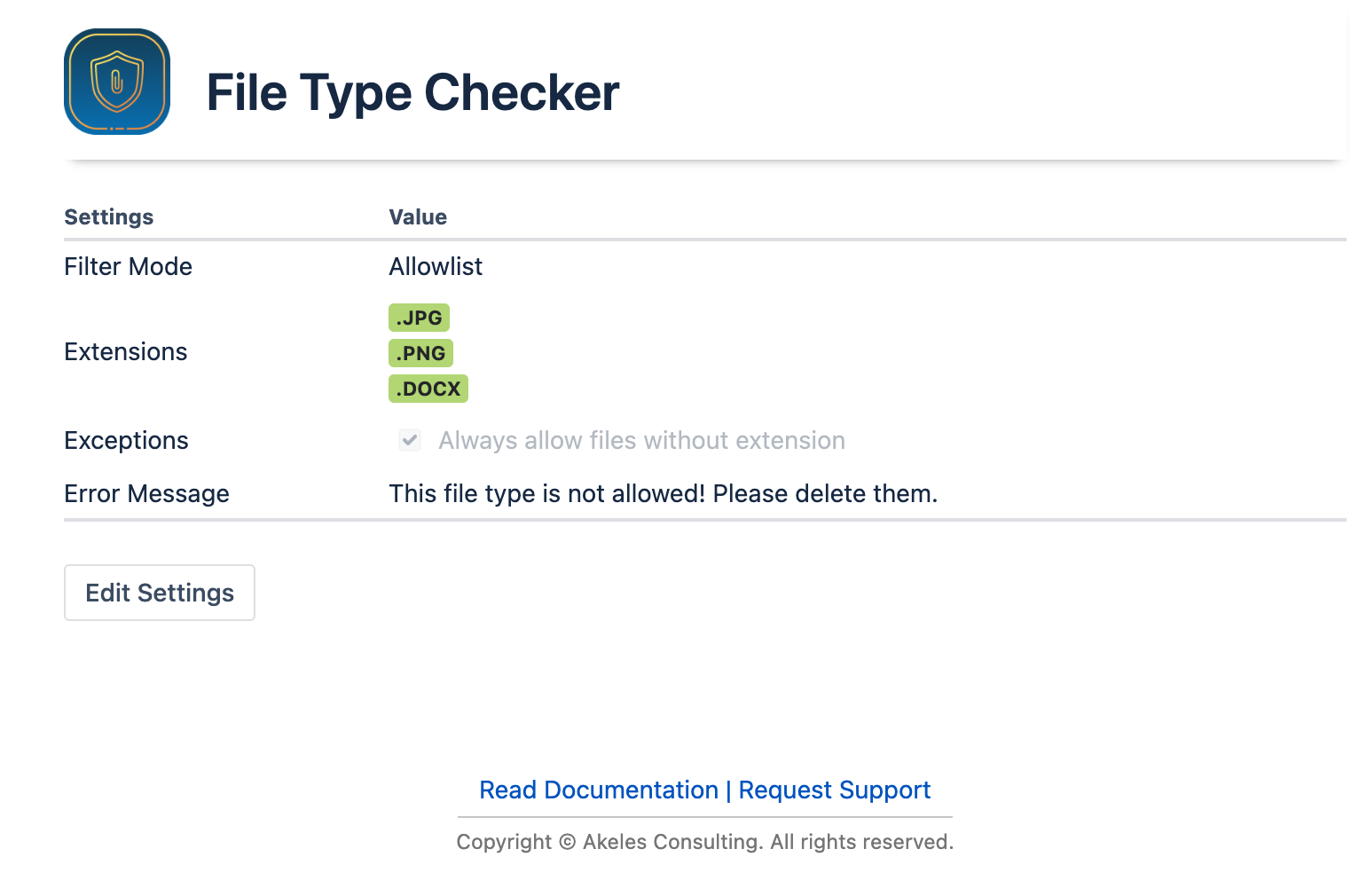
-
Under Handling of Unwanted Attachments click on Move to quarantine
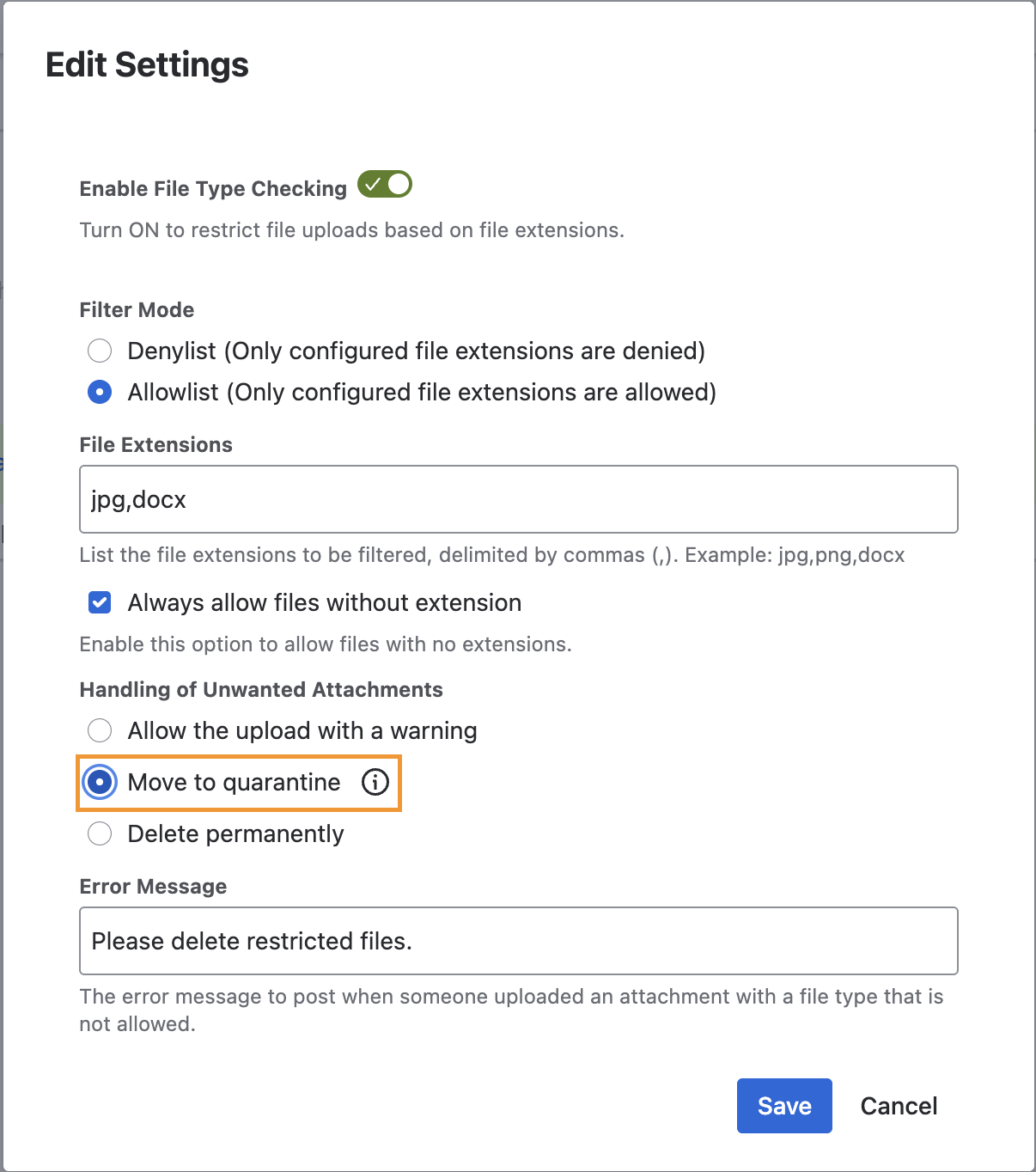
-
Save the configuration and you will see a banner
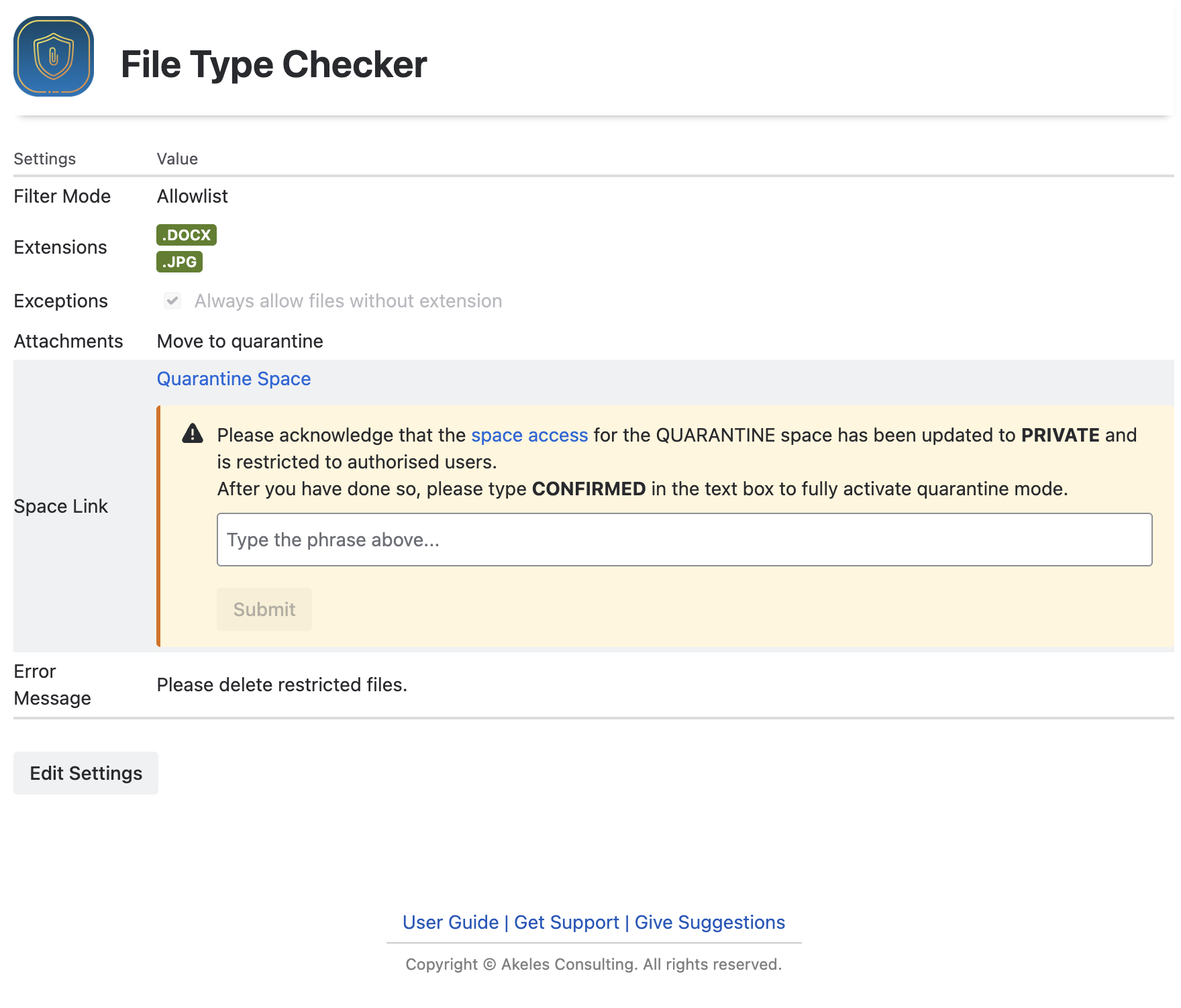
See below to see why this step is necessary.
-
Click on the space access link to go to the Quarantine Jira space
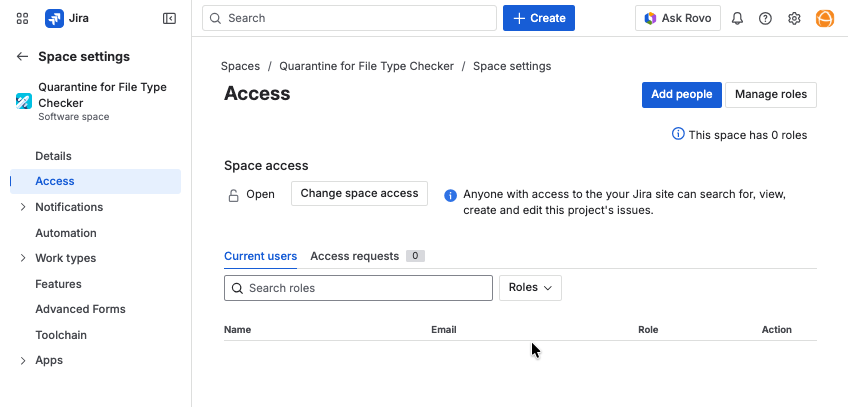
The space access is set the Open by default
-
Click on the Change space access button and switch to Private
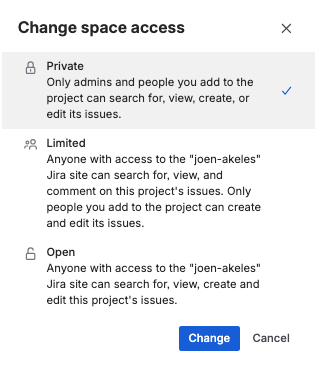
-
Confirm by choosing Save and make private
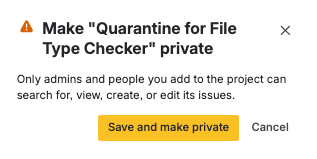
-
Click on the Add people button to choose who should be able to access the Quarantine project
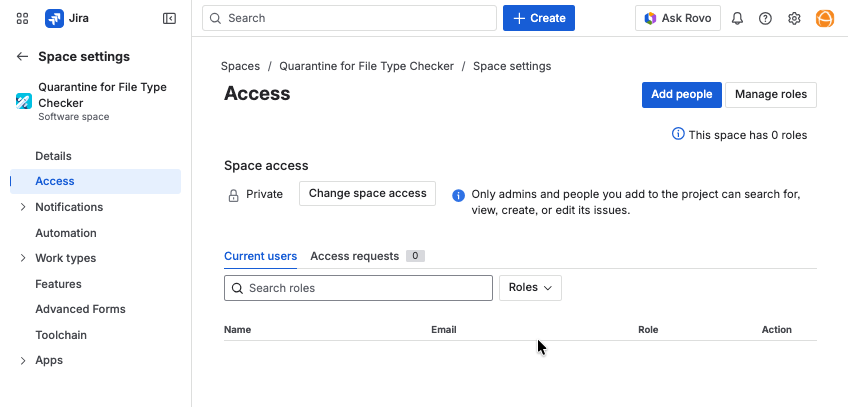
-
Go back to the File Type Checker screen and type CONFIRMED to complete the activation of Quarantine Mode
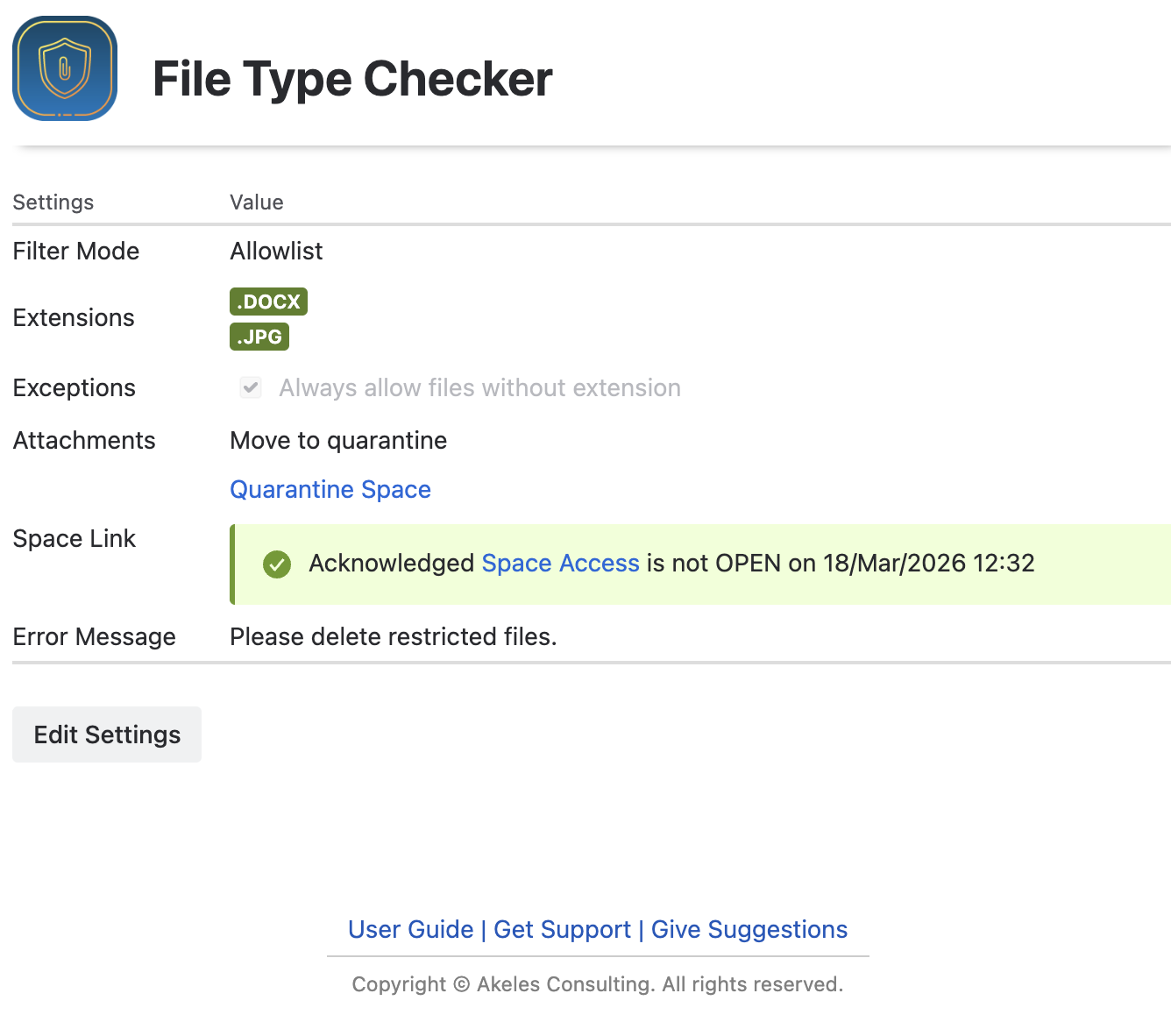
You can always click on the Space Access link to check on the latest space settings.
Important Security Stuff to take note
When the quarantine mode is enabled for the 1st time, the app will create a new Team Managed Jira space with the space key QUARANTINE. This Jira space is to keep record of all the quarantined attachments.
However, Atlassian Jira does not allow Forge apps to modify the space access settings without the Jira admins providing an API Token to store in the app. The usage of powerful API token will affect the security rating of our app since it carries some risks.
If the access level remains as the default setting of Open, all the information and attachments will become public access or accessible to all your Jira users.
This means unauthorised users may
-
view the details of the blocked uploads (information disclosure)
-
download suspicious/malicious attachments
How the app prevents public access of quarantine attachments
As a result, we made the decision that Jira admins needs to
-
Update the space access level
-
Confirm the space access level has updated
The quarantine mode is fully activated only after the confirmation,
Without the confirmation, the app will remain as warning mode even if the quarantine mode has been selected.
For similar reasons, the app is unable to check if the space access level is set correctly. It is still possible that the space access level can be changed back to Open subsequently. Hence, it is very important to be careful not to switch the space access level.
How should you handle the quarantine attachments?
When to check the quarantine attachments?
It is possible to finetune the settings of the QUARANTINE Jira space based on your preferred workflow.
For example:
-
Sending a notification when a new attachment is blocked
-
Using Dashboard Review Gadget to remind stakeholders to review the blocked attachments
-
Setting up a weekly filter subscription to do a review by batches
We recommend checking it at least once a week so that timely actions can be taken.
What happens if it is a false positive?
You can refine the configuration of file extensions so that it can be uploaded subsequently.
The blocked attachments can be re-uploaded back to their original linked work items.
When to delete the work item in the quarantine project
If there is no need to retain the records, we recommend it to delete those reviewed work items after 3 months. That will free up the disk space and reduce the impact if there is data leaks.