
Introduction
The primary purpose of the Search this Space page is to help users find what they want in the current space
You can
-
Search a particular page within the current space either by its title or content
-
Search an attachment within the current space by its filename
It has the following features:
-
More precise search
-
Search by title or content - Search by title will be much faster/accurate if you know exactly what you want
-
Different search modes - Exact Match / Contains / Starts with
-
Filter by type - Page / Blogpost / Attachment / Comment
-
-
No configuration required
-
Search immediately
-
-
Add to Space Sidebar
-
Ease of access. The link is added automatically to the Space sidebar
-
Run a search
-
Open Search this Space from the current space side bar.
-
Enter search text.
-
Choose Search by Title or Content.
-
Choose a search mode:
-
Exact Match uses the entered text directly.
-
Start With adds fuzzy matching to each word.
-
Contains adds a trailing wildcard to each word.
-
-
Open Search type and select any combination of Page, Blogpost, Comment, Attachment, Whiteboard, Database, Embed, and Folder. Use Select all or Clear for a quick reset.
-
Select Search.
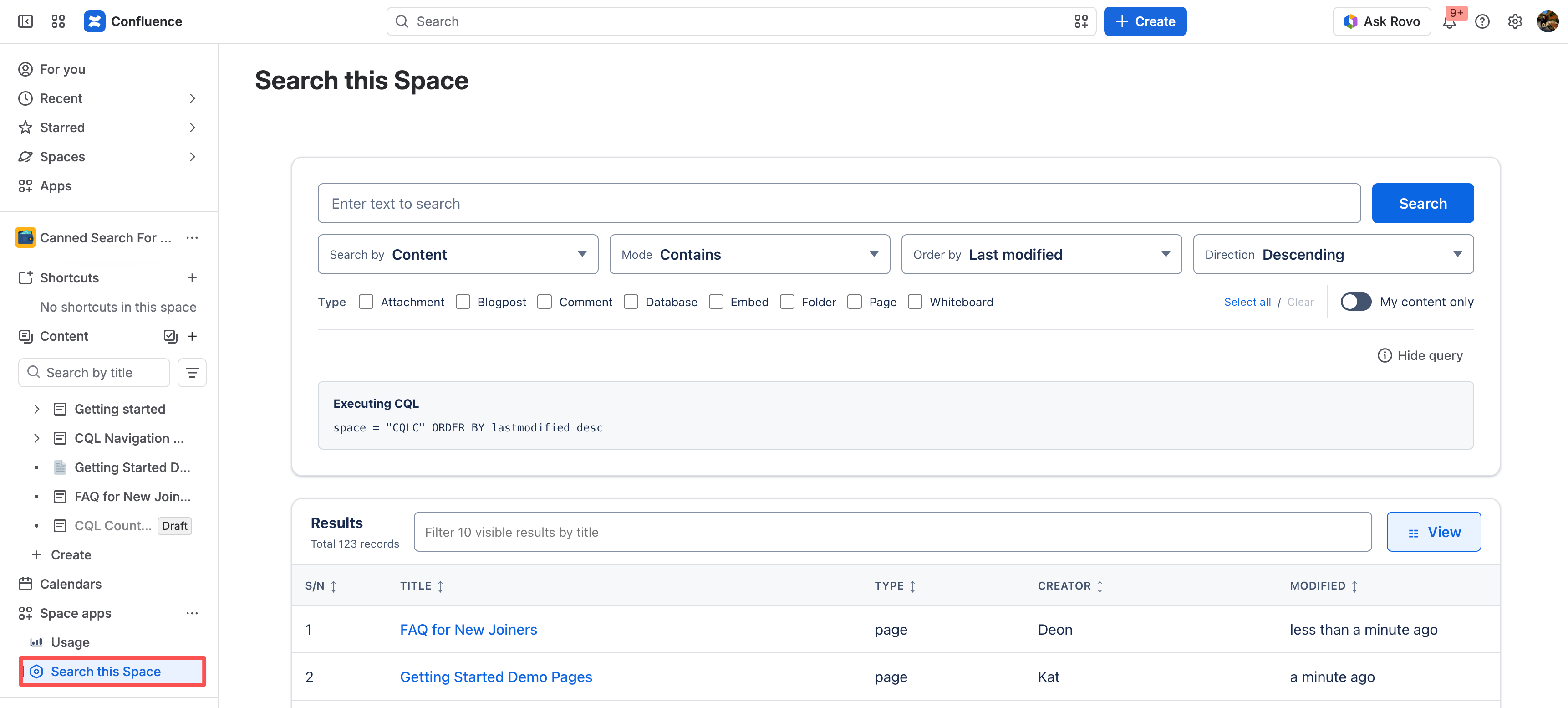
Search controls reference
Please take note that the searches operate strictly within the current space
|
Field |
Default |
Description |
Notes |
|---|---|---|---|
|
Search text |
Empty |
Sets the words or phrase to find in the current space. |
An empty value lists the newest content for the selected content types. |
|
Search by |
Content |
Selects the CQL field searched by the entered text. |
Title searches |
|
Search mode |
Contains |
Controls how each entered word is matched. |
Exact Match uses the text directly. Start With adds the fuzzy suffix ( |
|
Order By |
Last Modified |
Specifies the field used to sort the search results. |
Determines whether results are ordered by Title, Creation date or Modification date |
|
Direction |
Descending |
Controls the sorting direction of the search results |
Toggles between Ascending (A-Z, oldest to newest) and Descending (Z-A, newest to oldest) |
|
Search type |
All content types |
Limits results by content type. |
Options are Page, Blogpost, Comment, Attachment, Whiteboard, Database, Embed, and Folder. Use Select all or Clear to change the complete selection. Clearing every type removes the type restriction. |
Select Search to apply the controls. Quick Search searches only within the current space and orders the server result set by most recently modified first.
Change result details
|
Control |
Default |
Description |
Notes |
|---|---|---|---|
|
Show excerpts |
Off |
Adds an excerpt row below each result that has one. |
Matching search text is emphasized. |
|
Show image thumbnails |
Off |
Adds a thumbnail beside supported image attachments. |
Supports common image formats when Confluence supplies a preview URL. A failed preview is hidden automatically. |
|
View query |
Closed |
Shows or hides the generated CQL. |
Useful for understanding or troubleshooting the search. |
Use Display → Columns to show, hide, or reorder:
-
S/N
-
Title
-
Type
-
Labels
-
Creator
-
Modified
-
Created
-
Modified by
-
Parent page
At least one column must remain selected. Use the up and down controls in the menu to change column order.
Result table controls reference
|
Control |
Required |
Default |
Description |
Notes |
|---|---|---|---|---|
|
Display Columns |
Yes |
S/N, Title, Type, Labels, Creator, Modified |
Selects and orders the columns in the result table. |
At least one column must remain selected. Created, Modified by, Parent page, and Comments are available but hidden initially. |
|
Filter this page |
No |
Empty |
Filters the currently loaded rows by title. |
Available only while the Title column is selected. It does not search other result pages. |
|
Column sorting |
No |
None |
Sorts the currently loaded rows by the selected column. |
Select a sortable column heading to cycle its sort order. It does not reorder the complete result set on the server. |
|
Column width |
No |
Column-specific width |
Changes the width of an individual column. |
Drag the resize control, double-click it to reset, or focus it and use Left or Right Arrow. |
|
Rows per page |
No |
10 |
Sets the number of records requested from Confluence. |
Options are 10, 20, 50, and 100. Changing the value returns to the first result page. |
|
Previous / Next |
No |
— |
Loads an adjacent result page. |
A button is disabled when Confluence does not provide a page in that direction. |
Work with the table
-
Select a sortable column heading to sort the currently loaded page.
-
Drag a column's right edge to resize it, or double-click the resize control to reset its width. With a keyboard, focus the resize control and use Left or Right Arrow.
-
Use Filter this page to filter the currently loaded rows by title. This is a client-side filter and does not search other result pages.
-
Select 10, 20, 50, or 100 rows per page.
-
Use the Previous and Next buttons to load adjacent result pages.
-
Select a title or parent page to open it. Use the download icon on attachment results to download the file.
Column visibility, order, sizing, filters, and display toggles apply to the current Quick Search session; they are not saved as a shared space configuration.
Demo