
Introduction
The CQL Navigation Macro automatically generates Previous and Next links, allowing users to navigate between pages based on the configured navigation mode:
-
Same parent page: Navigate between child pages under the same parent page.
-
Label within the same parent: Navigate between pages with the specified label under the same parent page.
-
Label across different parents: Navigate between pages with the specified label, regardless of their parent page.
Users can choose the page order based on Title, Creation Date, Modified Date, or Position in Page Tree.

Configuration
Configure Navigation Setting
-
Insert or edit CQL Navigation Macro.
-
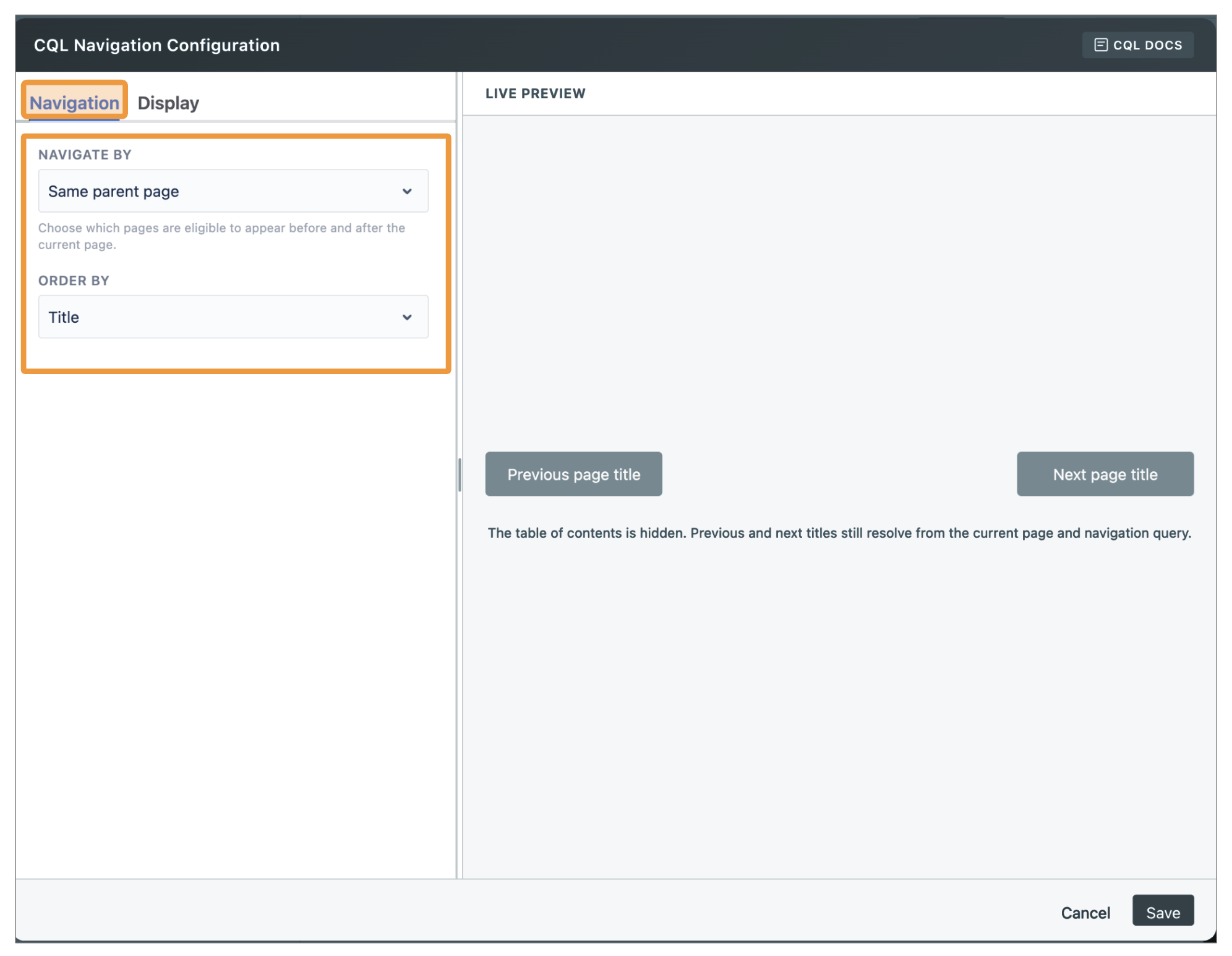
On the Navigation tab, configure your macro
|
Field |
Required |
Default |
Description |
Notes |
|---|---|---|---|---|
|
Navigate By |
Yes |
Same parent page |
Defines which pages can appear before and after the current page. |
Options are Same parent page, Label across different parent pages, and Label within the same parent page. |
|
Labels |
Conditional |
Empty |
Provides the comma-separated labels used by either label-based navigation mode. |
Required for Label across different parent pages and Label within the same parent page. Example: |
|
Order By |
Yes |
Title |
Defines the sequence used to determine the previous and next pages. |
Options are Position, Creation Date, Last Modified Date, and Title. All date and title ordering is ascending. |
The Navigate By options include:
|
Option |
Included pages |
|---|---|
|
Same parent page |
Sibling pages under the current page's parent |
|
Label across different parent pages |
Pages in the current space that have any configured label |
|
Label within the same parent page |
Sibling pages that have any configured label |
For label-based navigation modes, enter one or more comma-separated labels, such as documentation, release-notes.
Choose Order By to determine the page sequence:
-
Position: Follows the Confluence page-tree order. Available only in Same parent page mode.
-
Creation Date: Sorts pages by creation date in ascending order.
-
Last Modified Date: Sorts pages by last modified date in ascending order.
-
Title: Sorts pages by title in ascending order.
The current page must belong to the configured sequence for navigation to work. The Previous button is disabled on the first page, and the Next button is disabled on the last page.
Configure the Navigation Buttons
Use the Display tab to configure the navigation controls.
-
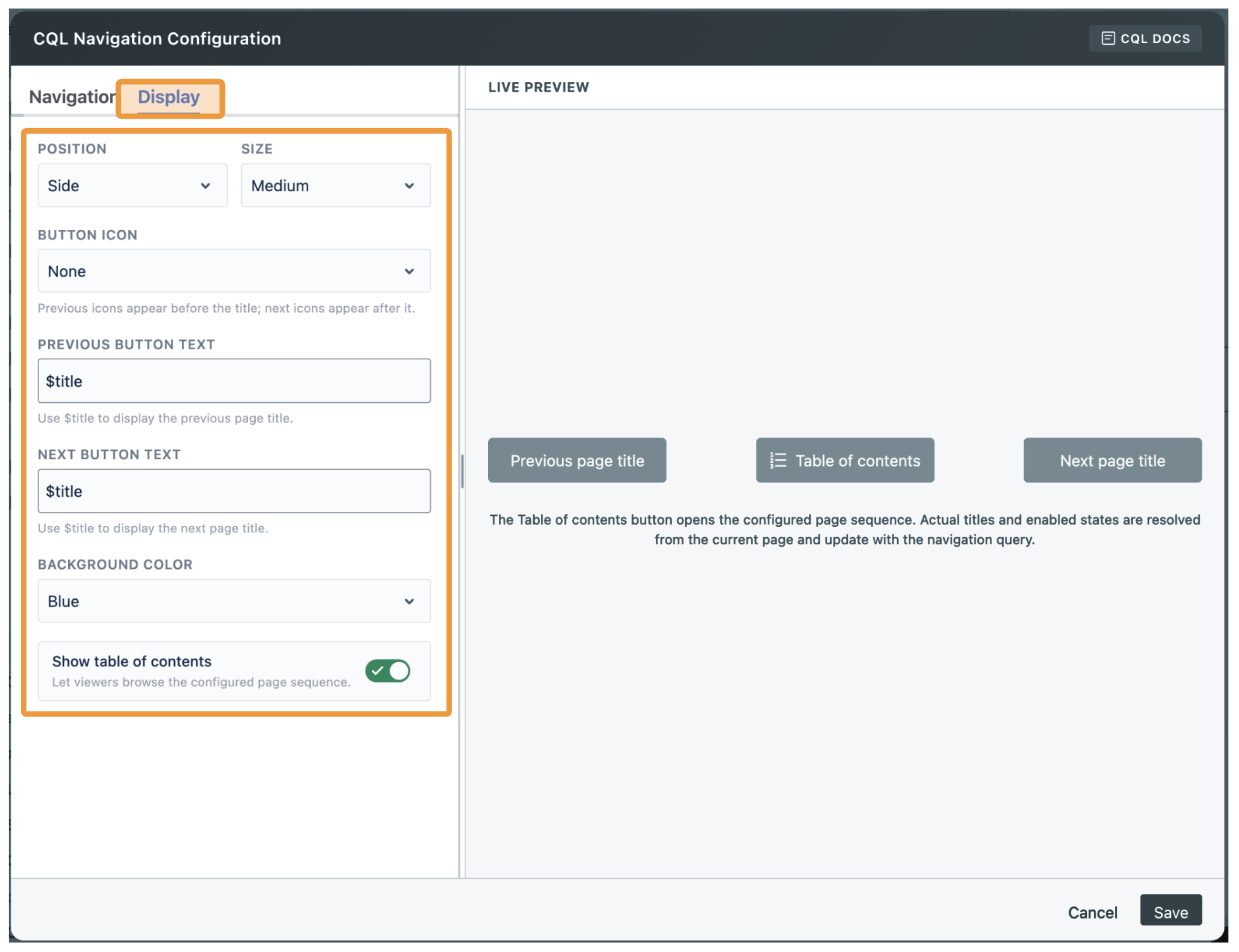
On the Display tab, configure the display settings
|
Field |
Required |
Default |
Description |
Notes |
|---|---|---|---|---|
|
Position |
No |
Side |
Aligns the navigation controls within the macro area. |
Options are Left, Center, Right, and Side. Side places Previous and Next at opposite sides. |
|
Size |
No |
Medium |
Sets the navigation button size. |
Options are Small, Medium, and Large. |
|
Button Icon |
No |
None |
Sets the icon displayed on the Previous and Next buttons. |
Options are None, Basic arrow, Circle arrow, and Chevron. The Previous icon appears before its text; the Next icon appears after its text. |
|
Previous Button Text |
No |
|
Sets the label of the Previous button. |
Use |
|
Next Button Text |
No |
|
Sets the label of the Next button. |
Use |
|
Background Color |
No |
Blue |
Sets the navigation button color. |
Options are Blue, Green, Navy, Yellow, Orange, Purple, and Red. |
|
Show table of contents |
No |
Off |
Adds a button that opens the complete configured page sequence. |
Existing macro instances remain off until an author enables this option. |
Table of contents Button
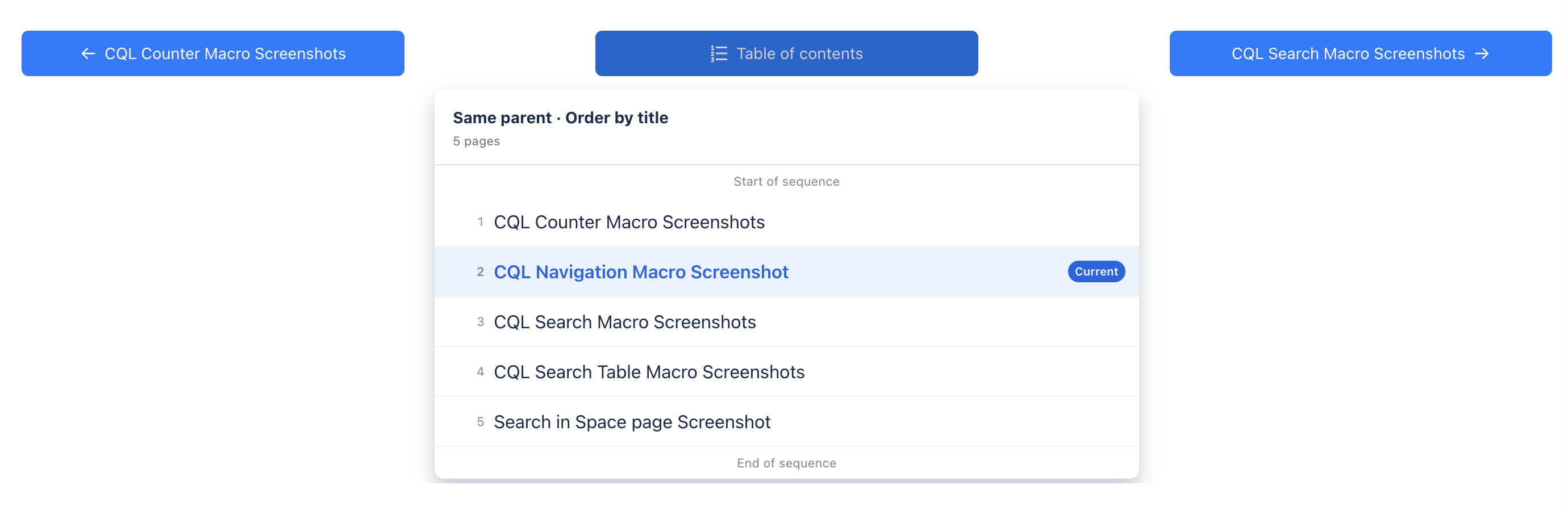
Allow users to view the page sequence and navigate between pages.
-
Enable this option to display a Table of Contents button
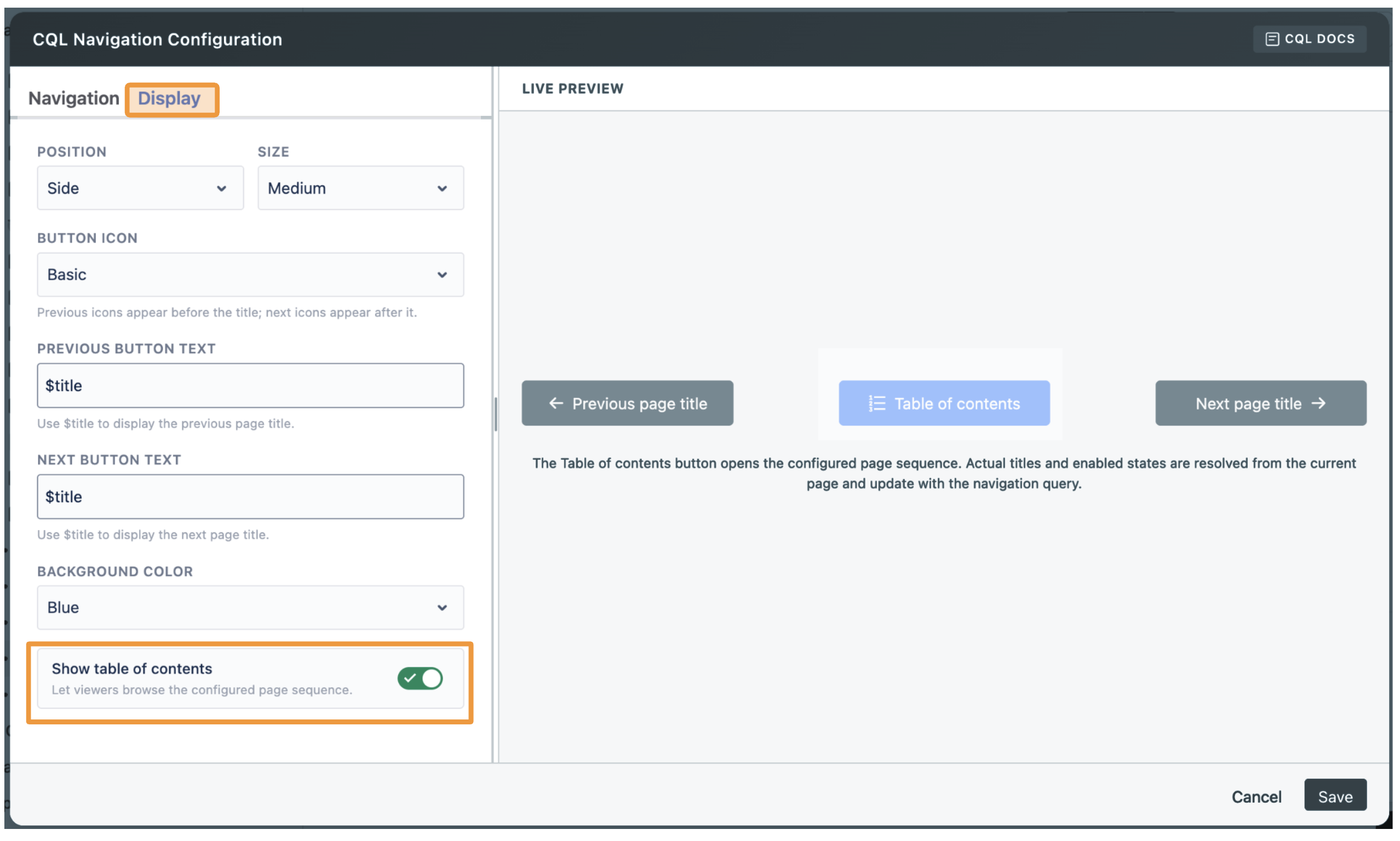
The Table of Contents is optional. Existing navigation macros remain unchanged unless the author enables this feature.
Using CQL Navigation Macro
Navigation Buttons
-
The Previous button is disabled on the first page, and the Next button is disabled on the last page.
-
Use the Previous and Next buttons to navigate between pages.
Table of Contents Button
-
The current page is highlighted and automatically scrolled into view.
-
Select any page to open it.
-
For long page sequences, scroll toward the start or end to load more pages.
-
Press Escape, click outside the navigation area, or switch focus to another window to close the panel.