
Introduction
The CQL Search Table macro allows users to search content using predefined CQL queries and display results in a table with configurable columns.
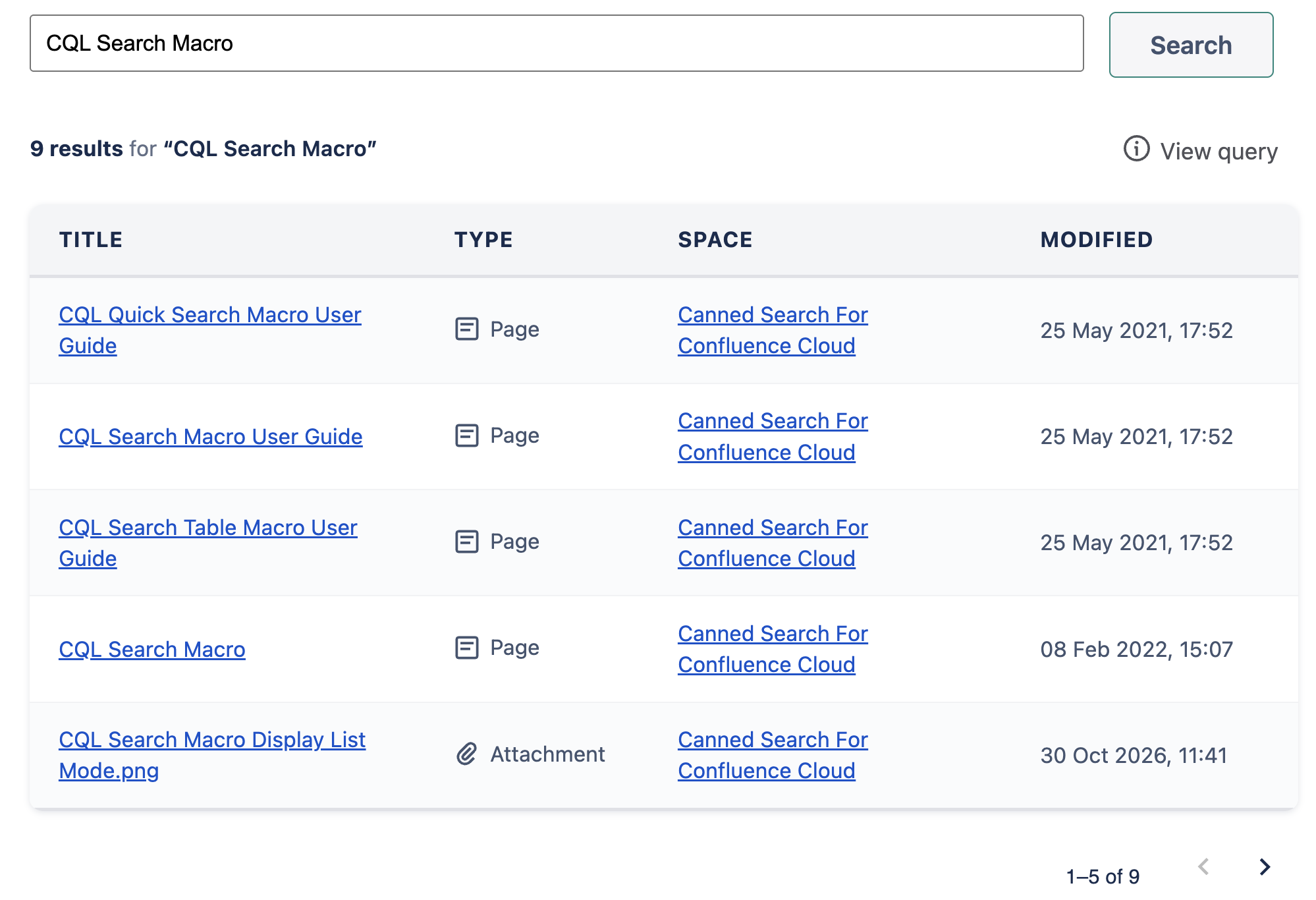
Common use cases include searching for titles or keywords within:
-
Meeting minutes for a specific project.
-
Child pages under an SOP page.
-
Training slides and other attachments labelled with training.
Configuration
Configure the query
-
Insert or edit CQL Search Table Macro.
-
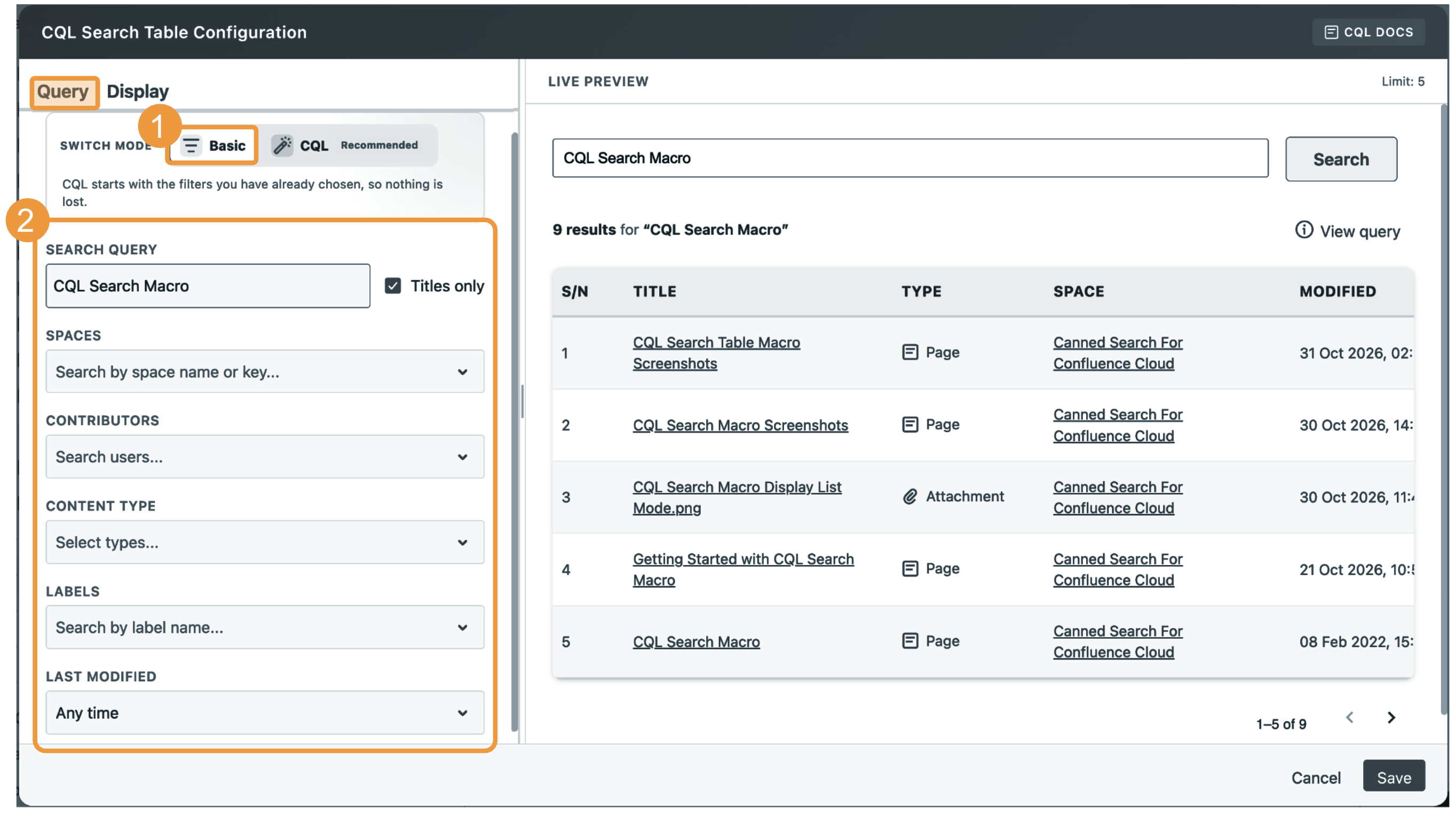
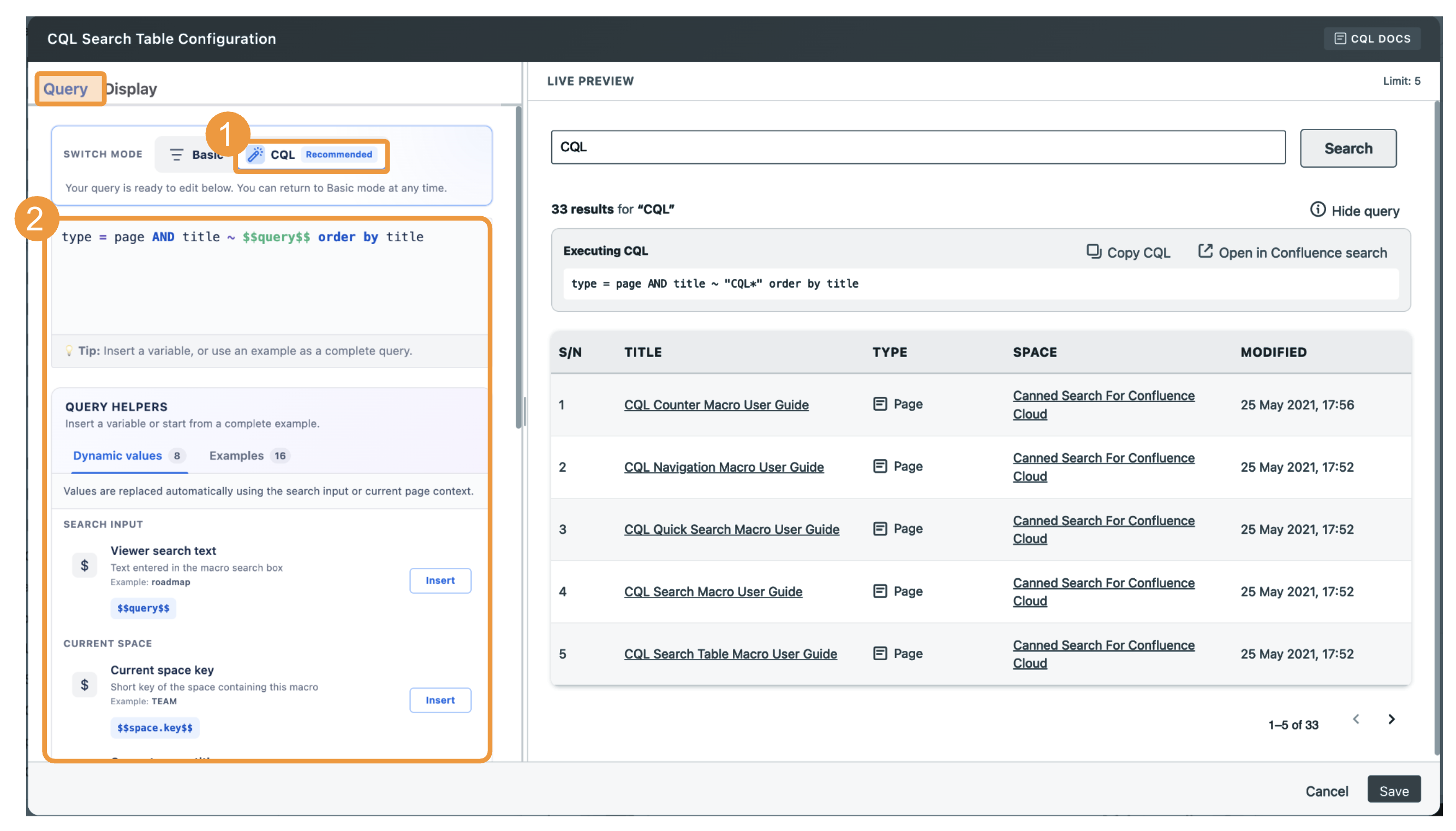
On the Query tab, choose Basic or CQL.
-
Configure your search:
-
Basic mode: Select the relevant spaces, contributors, content types, labels, and date range. Enable Titles only to search titles without searching the body text.
-
CQL mode: Enter a valid CQL query. Use
$$query$$wherever reader-entered search text should be substituted. For example:type = page AND space = $$space.key$$ AND title ~ $$query$$ ORDER BY title
-
-
Check the live preview to verify that the search returns the expected content and that the selected columns display the correct information.
Query settings reference
Basic mode
|
Field |
Required |
Default |
Description |
Notes |
|---|---|---|---|---|
|
Search Query |
No |
Empty |
Sets the initial search text used when the macro loads. |
This is the same value as Default Search Term on the Display tab. |
|
Titles only |
No |
Off |
Searches titles instead of content. |
Generates |
|
Spaces |
No |
All accessible spaces |
Limits results to selected spaces. |
Search by space name or key. Multiple spaces generate one |
|
Contributors |
No |
All contributors |
Limits results to content associated with selected users. |
Multiple users generate one |
|
Content Type |
No |
All supported types |
Limits results to Pages, Blog posts, Attachments, or Comments. |
Multiple types generate one |
|
Labels |
No |
Any label |
Limits results to content with selected labels. |
One label generates |
|
Last Modified |
No |
Any time |
Limits results by their last-modified date. |
Options are Any time, Last 24 hours, Last week, Last month, Last year, and Custom. |
|
From |
Conditional |
One month before the current date |
Sets the start of a custom last-modified range. |
Used only when Last Modified is Custom. |
|
To |
Conditional |
Current date |
Sets the end of a custom last-modified range. |
Used only when Last Modified is Custom. |
In Basic mode, populated filters are combined using AND, and the generated CQL is displayed in the live preview.
CQL mode
|
Field |
Required |
Default |
Description |
Notes |
|---|---|---|---|---|
|
CQL |
Yes |
|
Defines the content returned in the table. Use |
The statement must be valid Confluence Query Language (CQL). Dynamic page and space variables and complete examples are available beside the editor. If |
Use $$query$$ exactly as shown. The selected Search Mode determines whether fuzzy or wildcard matching is applied, where appropriate.
Supported variables include:
|
Variable |
Replaced with |
|---|---|
|
|
Text entered in the macro search box, processed using the selected Search Mode |
|
|
Key of the space containing the macro |
|
|
Name of the space containing the macro |
|
|
ID of the page containing the macro |
|
|
Title of the page containing the macro |
|
|
Creation date and time of the page containing the macro |
|
|
Last-modified date and time of the page containing the macro |
|
|
ID of the current page's parent |
Switching from Basic mode to CQL mode makes the generated query editable.
Switching an advanced CQL query back to Basic mode may not preserve all conditions, so review the parsed fields carefully before saving.
Configure the display
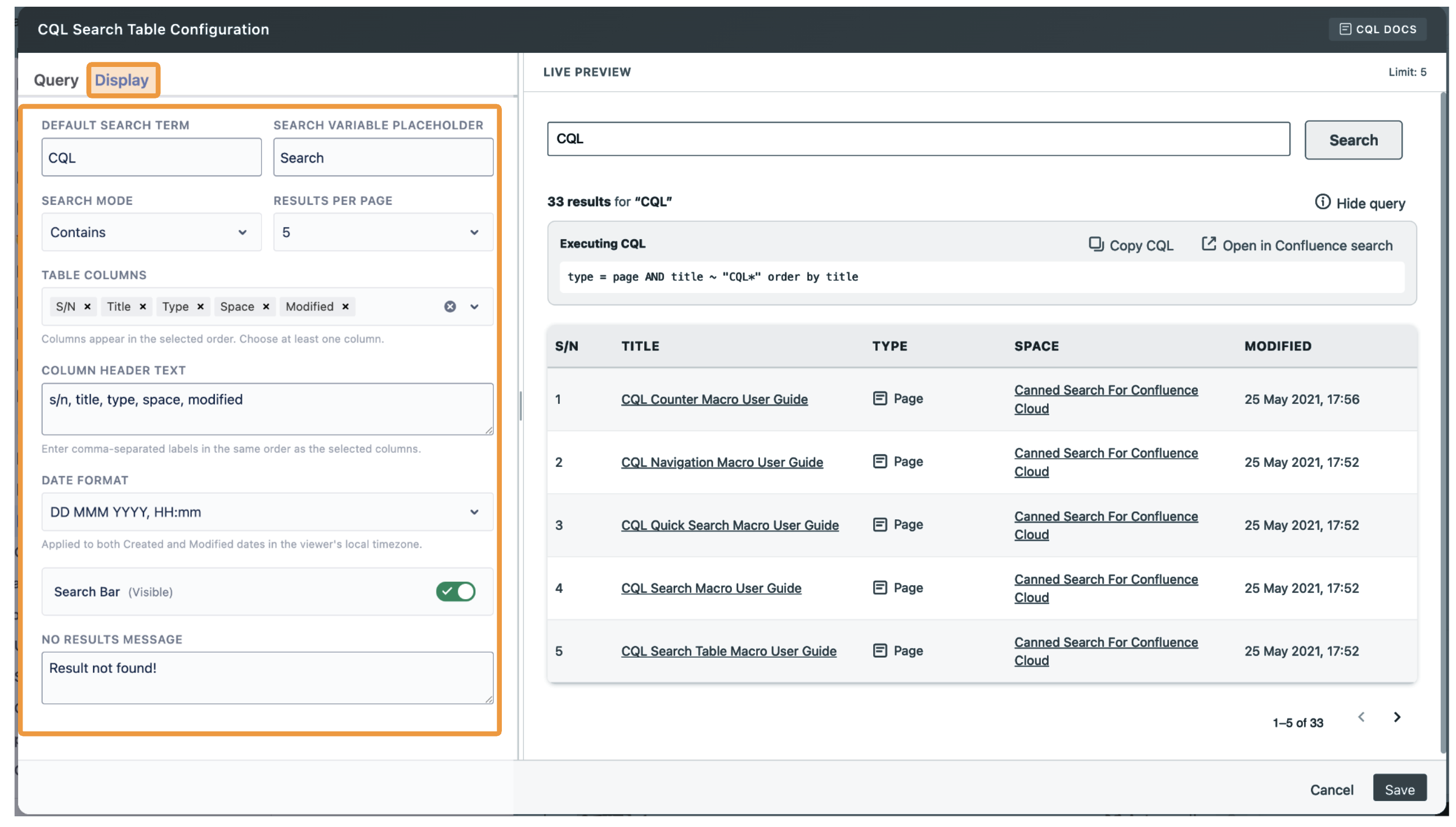
Use the Display tab to control the search box, pagination, result layout, and dates.
-
On the Display tab, configure the display settings
-
-
Select table columns from the 12 available options in the configuration form: S/N, Title, Space, Type, Created, Modified, Creator, Modifier, Labels, Version, Comments, and Excerpt.
-
Choose from five date formats for the Created and Modified columns. Dates are displayed in the viewer’s local timezone.
-
|
Field |
Required |
Default |
Description |
Notes |
|---|---|---|---|---|
|
Default Search Term |
No |
Empty |
Runs an initial search with this text when the macro loads. |
This is the same value as Search Query in Basic mode. In CQL mode, it replaces |
|
Search Variable Placeholder |
No |
|
Sets the hint displayed in an empty search box. |
It does not change the query. |
|
Search Mode |
No |
Contains |
Controls how the search term is matched. |
Exact Match uses the text directly; Start With adds |
|
Results per page |
No |
5 |
Sets the number of rows loaded per result page. |
Available values are 5, 10, 50, and 100. |
|
Table Columns |
Yes |
S/N, Title, Type, Space, Modified |
Selects and orders the displayed columns. |
Columns appear from left to right in the selected order. At least one column is required. |
|
Column Header Text |
Yes |
|
Sets custom comma-separated column headings. |
Supply one non-empty heading for each selected column, in the same order. |
|
Date Format |
No |
|
Formats Created and Modified values. |
Dates are shown in the viewer's local timezone. Date formats
|
|
Search Bar |
No |
Visible |
Shows or hides the reader-facing search box. |
Available only when the active CQL contains |
|
No Results Message |
No |
|
Sets the message shown when the query returns no rows. |
Use a short message that helps readers adjust their search. |
Available columns are:
|
Column |
Contents |
|---|---|
|
S/N |
Result number across result pages |
|
Title |
Linked content title |
|
Space |
Linked space name |
|
Type |
Content-type icon and name |
|
Created |
Creation date in the viewer's local timezone |
|
Modified |
Last-modified date in the viewer's local timezone |
|
Creator |
Content creator |
|
Modifier |
Most recent modifier |
|
Labels |
Confluence labels |
|
Version |
Current version number |
|
Comments |
Comment count |
|
Excerpt |
Search-result excerpt with the search term emphasized |
At least one valid column with a non-empty heading is required. If the saved column configuration is empty or invalid, the macro uses the default columns: S/N, Title, Type, Space, and Modified.
Using CQL Search Table Macro
-
Select a column heading to sort the rows currently loaded in the table.
-
Scroll horizontally when the selected columns are wider than the page.
-
Use the pagination controls to load more results from Confluence.
-
Select View query to inspect or copy the executed CQL, or open it in Confluence search.
Sorting applies only to the currently loaded result page. To maintain consistent ordering across the complete result set, use ORDER BY in the CQL.