
Use this guide to identify unusually large attachments in a Jira project space with File Type Checker so you can review storage-heavy files, investigate upload patterns, and decide whether cleanup or governance is needed.
Before you start: You need minimally project admin rights to access the reports.
Steps
Start with a Jira project space that has a lot of work items or activities.
They are likely to have more attachments and higher storage space usage.
-
Go to a Jira project space
-
Locate the Attachment Report
-
For Jira projects, it is in a tab
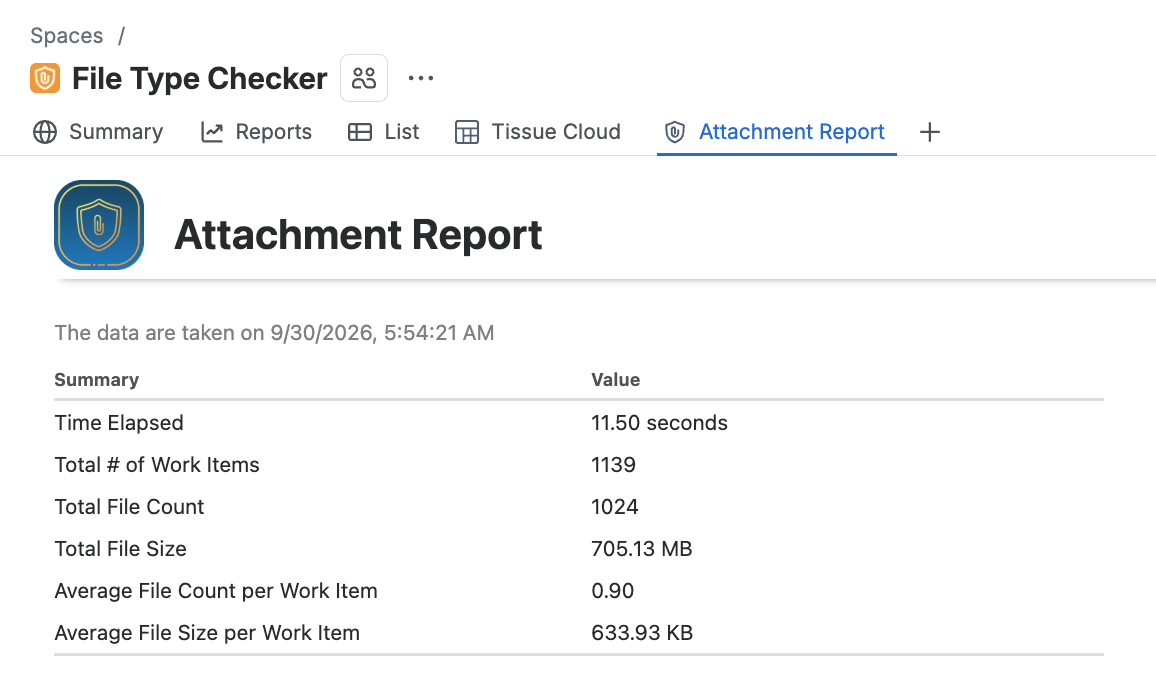
-
For Service Management projects, it is available from the left sidebar
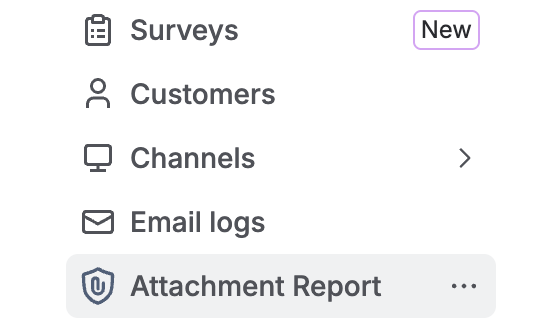
-
-
Wait for the app to scan the project
-
It will display a summary of the Jira project space
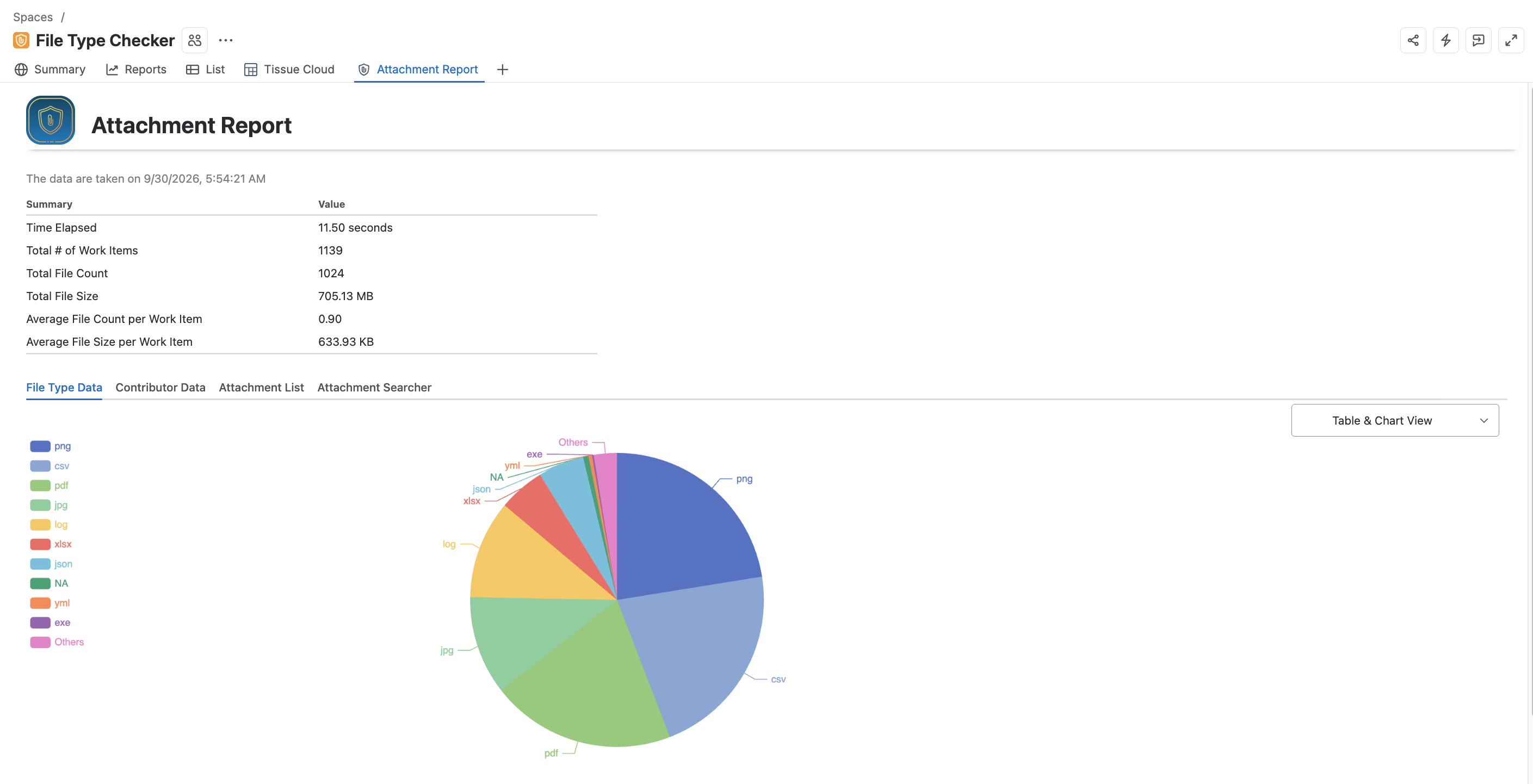
-
Click on the Total Size header to sort the report by the total file size for each file type
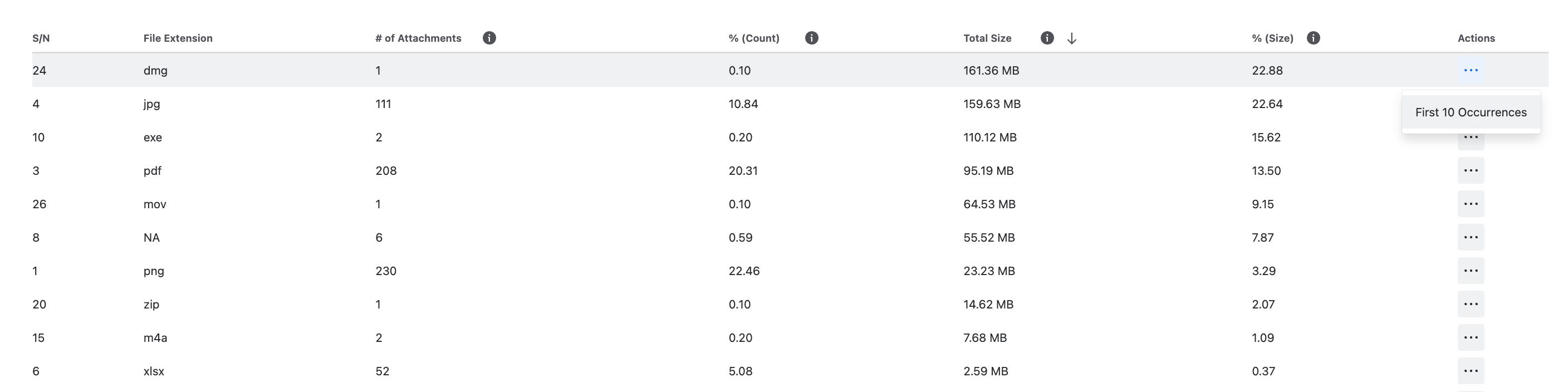
-
Click on the … button under the Actions column to choose First 10 Occurrences
-
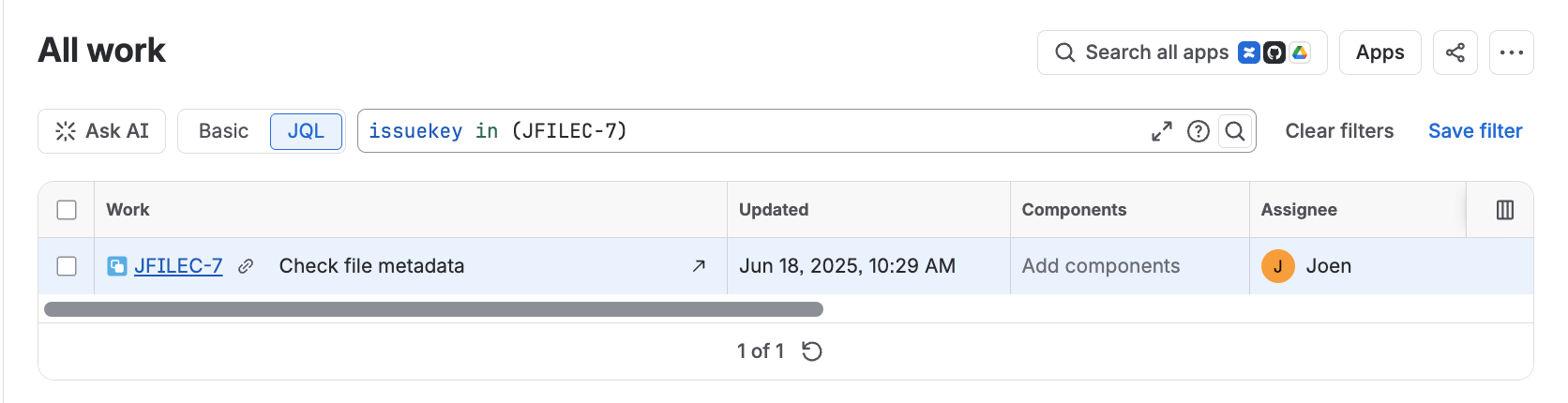
It will launch a new Work Item Search page to display those work items containing that file type. For performance reasons, the app only display up to the first 10 occurrences. You can also use the Attachment Searcher to find the full list
-
Click into any work item in the results
-
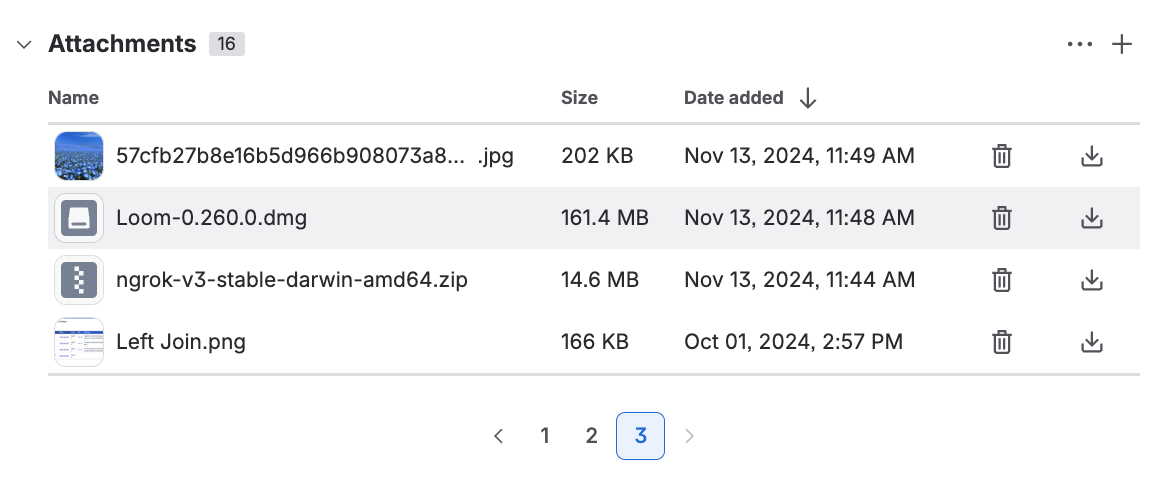
The dmg attachment can be found under the list of attachments
FAQs