.png)
Overview
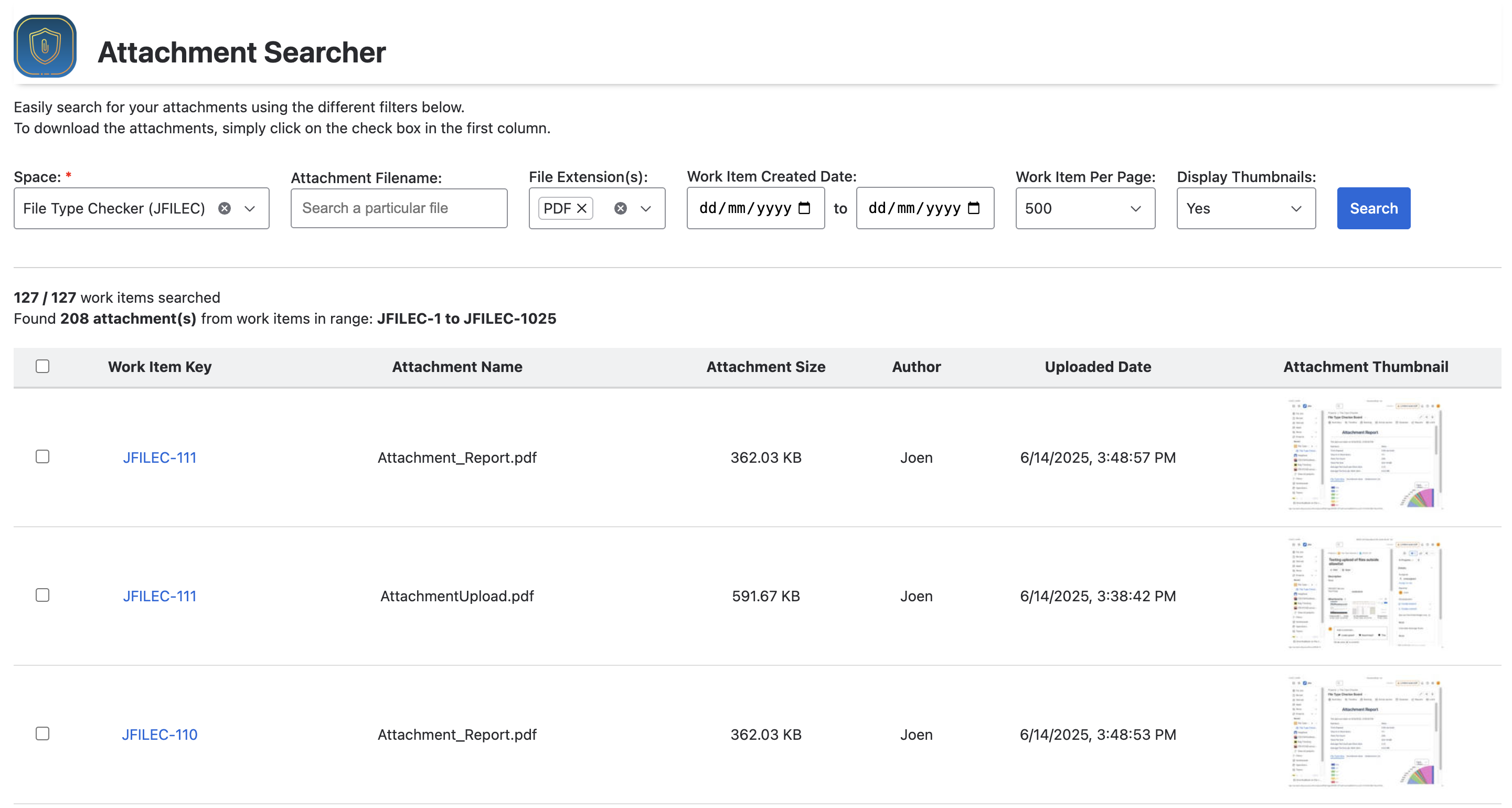
The Attachment Searcher allows users to search for the attachments in their project space without having to view each work item individually.
Possible use cases
The Attachment Searcher will be handy for scenarios like
-
You need to bulk download the attachments as a zip file because
-
some people do not have access to Jira
-
you want to delete the project
-
-
You need to locate a work item that contains a particular file
-
You want to assess if a file extension is commonly used for this space before updating the allowlist for file types
-
You want to have an overview of all the attachments in the space
How to use Attachment Searcher
1) Specifying the search criteria
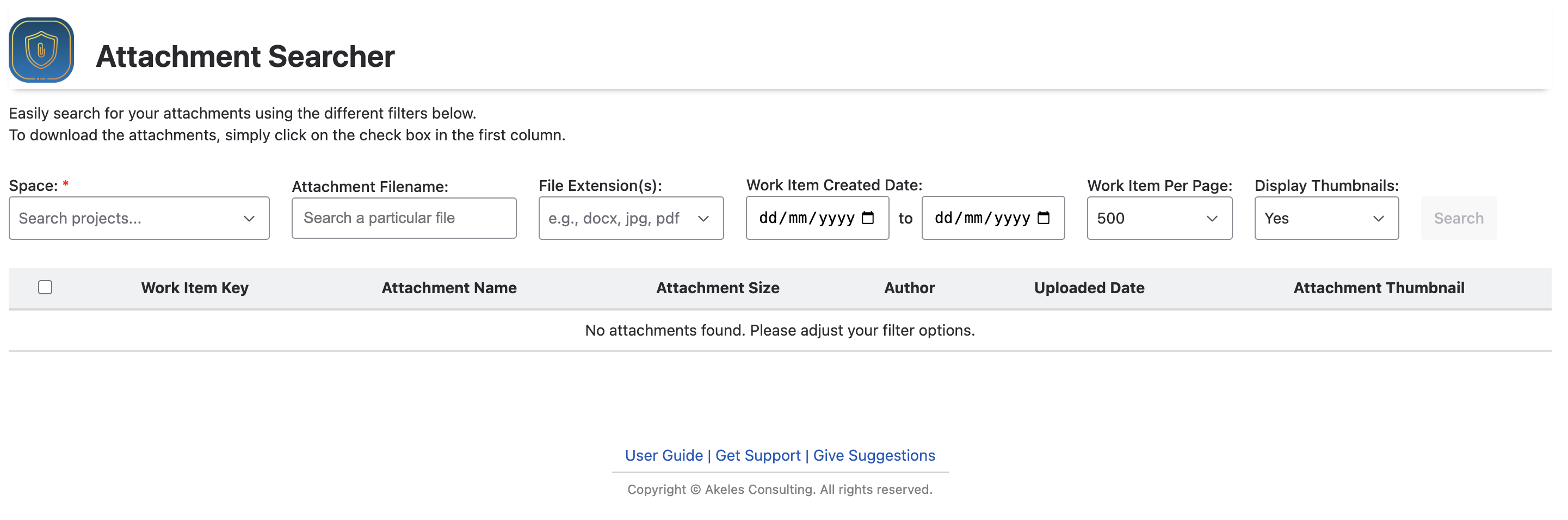
The filter options available space, attachment filename, file extension(s), work item created date, work item per page, and display thumbnails.
|
Filter Option |
Description |
Remarks |
|---|---|---|
|
Space |
The space to search in. |
It is only possible to search 1 space at a time. |
|
Attachment Filename
|
If you remember part of the filename but not the specific work item, this filter helps narrow down the results. |
Partial matches are supported. So you can search for attachments with filenames containing your search text. |
|
File Extension(s)
|
You can use this to filter the results to show only attachments of the specified file extension |
If you want to search for multiple extensions, you can delimit it with comma Example gif, jpg, png
|
|
Work Item Created Date optional |
Only work items created in the specified duration will be checked. If it is not specified, all the work items will be scanned for attachments. |
|
|
Work Item Per Page |
Number of work items to search at a time.
|
Choose a smaller value for a faster response time
|
|
Display Thumbnails |
A small preview of the attachment will be shown |
For faster performance, you can choose not to display the thumbnails |
2) View the results
The attachments are displayed in a tabular format showing the
-
Work Item Key
-
Attachment Name
-
Attachment Size
-
Author (The name of the user who uploaded the attachment)
-
Uploaded Date
-
Attachment Thumbnail preview
Those attachments from the recent work items are displayed first
If you do not have browse permissions for the space or work items, the attachments will be excluded from the results.
3) How to bulk download attachments
It is possible to batch download the selected attachments on the page as a single zip file.
The first column contains a checkbox for each attachment. Selecting one or more attachments will enable the Download Attachments button.
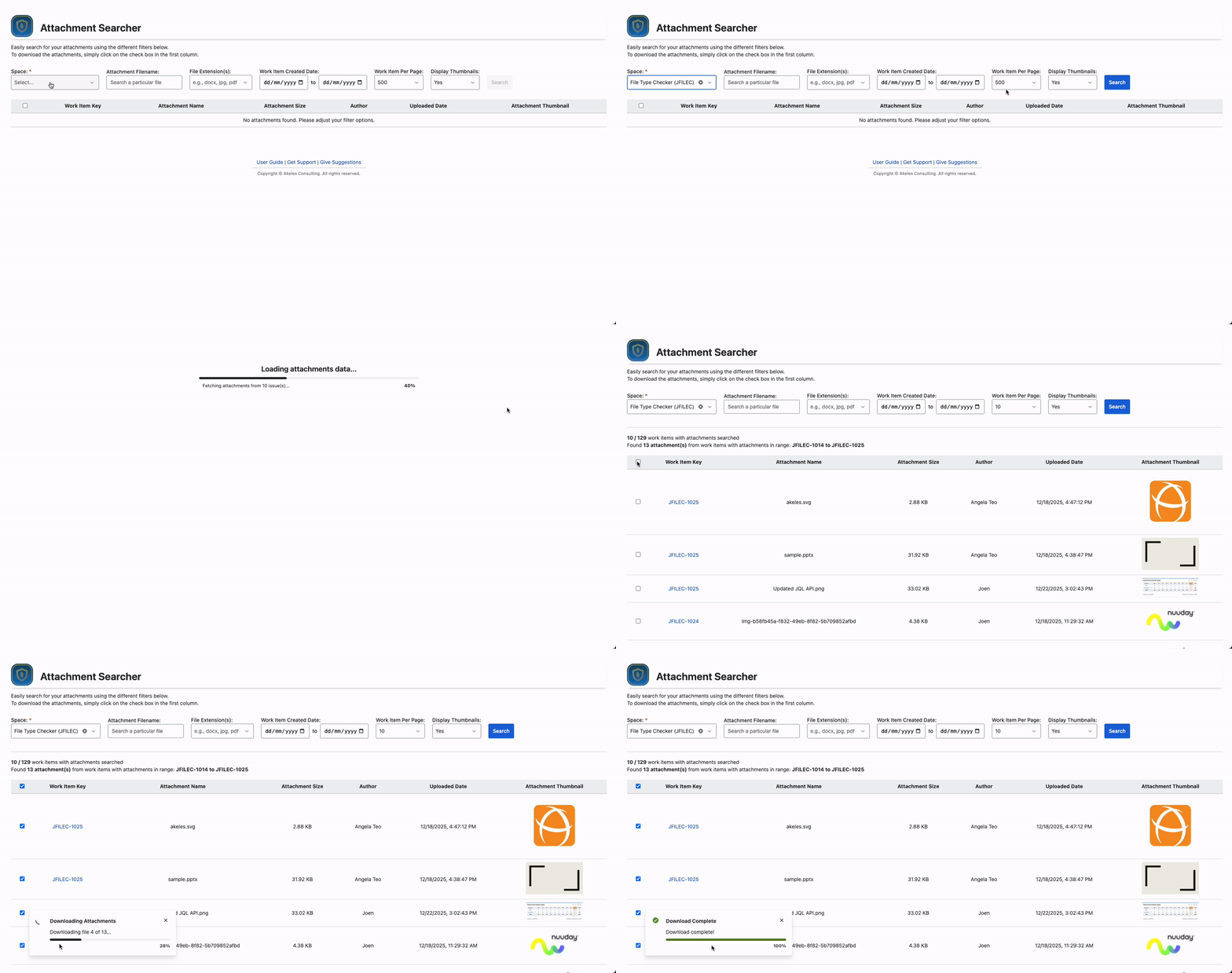
You can click on the checkbox in the top row to select all the attachments listed on the current page.
How to access the Attachment Searcher
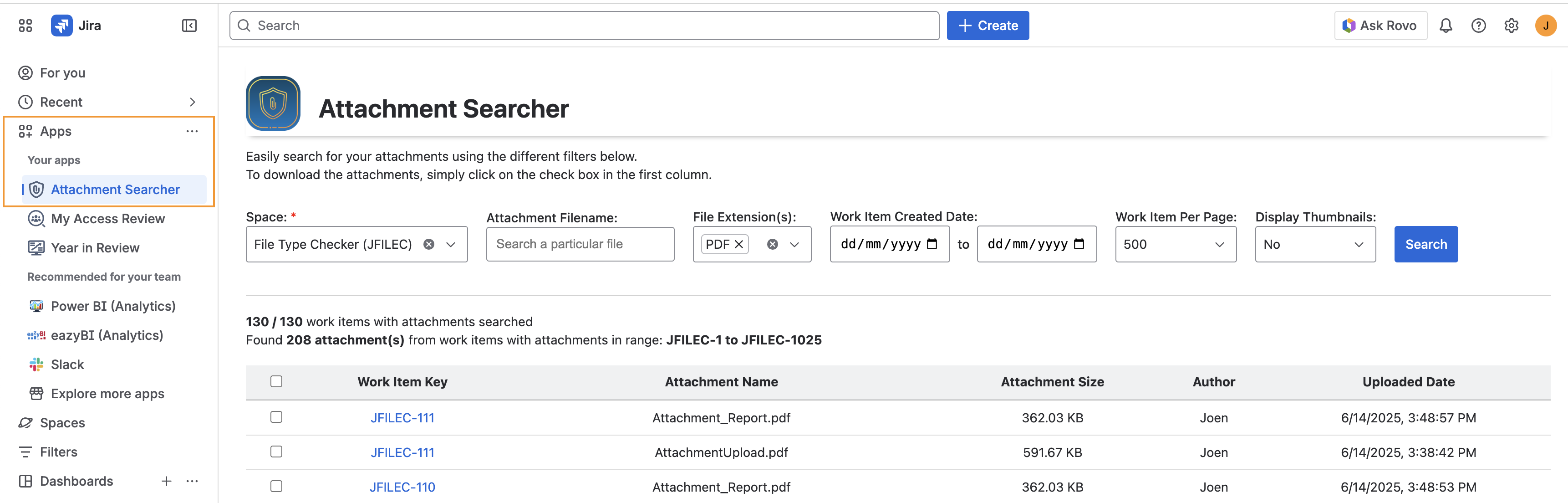
The Attachment Searcher is available to all Jira users from the site sidebar under the Apps section
Related Info
Space admins and Jira admins can also access more reports on the attachments for their projects.