
Improvement
Important: Licensing and administration update
-
Starting from version 5.0.0, a Confluence administrator must register for a license and enter the license key on the new License Configuration page.
-
After upgrading, verify that the license has been saved successfully and its status is Valid.
-
Note: If no valid license is detected, a license registration message will be displayed directly within the macros on your Confluence page.
-
-
Refer to the steps in Registering for a free License Key for more information.
Major UI Redesign & Enhanced Macros
This version introduces a redesigned configuration interface, richer search results, better handling of large searches, and license registration for CQL for Confluence. The new full-screen macro editor features live preview and powerful query helpers for easier configuration.
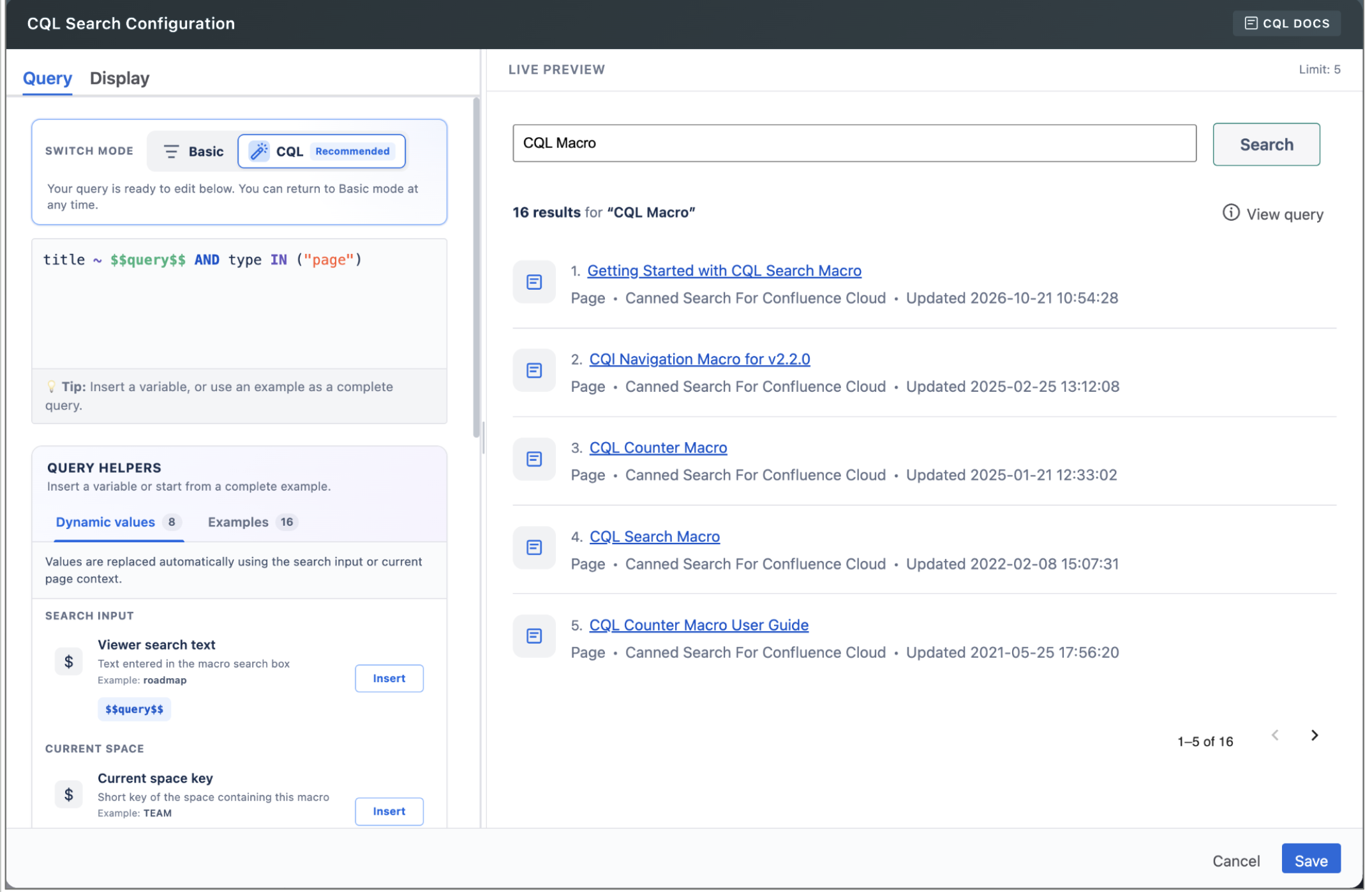
What’s New:
-
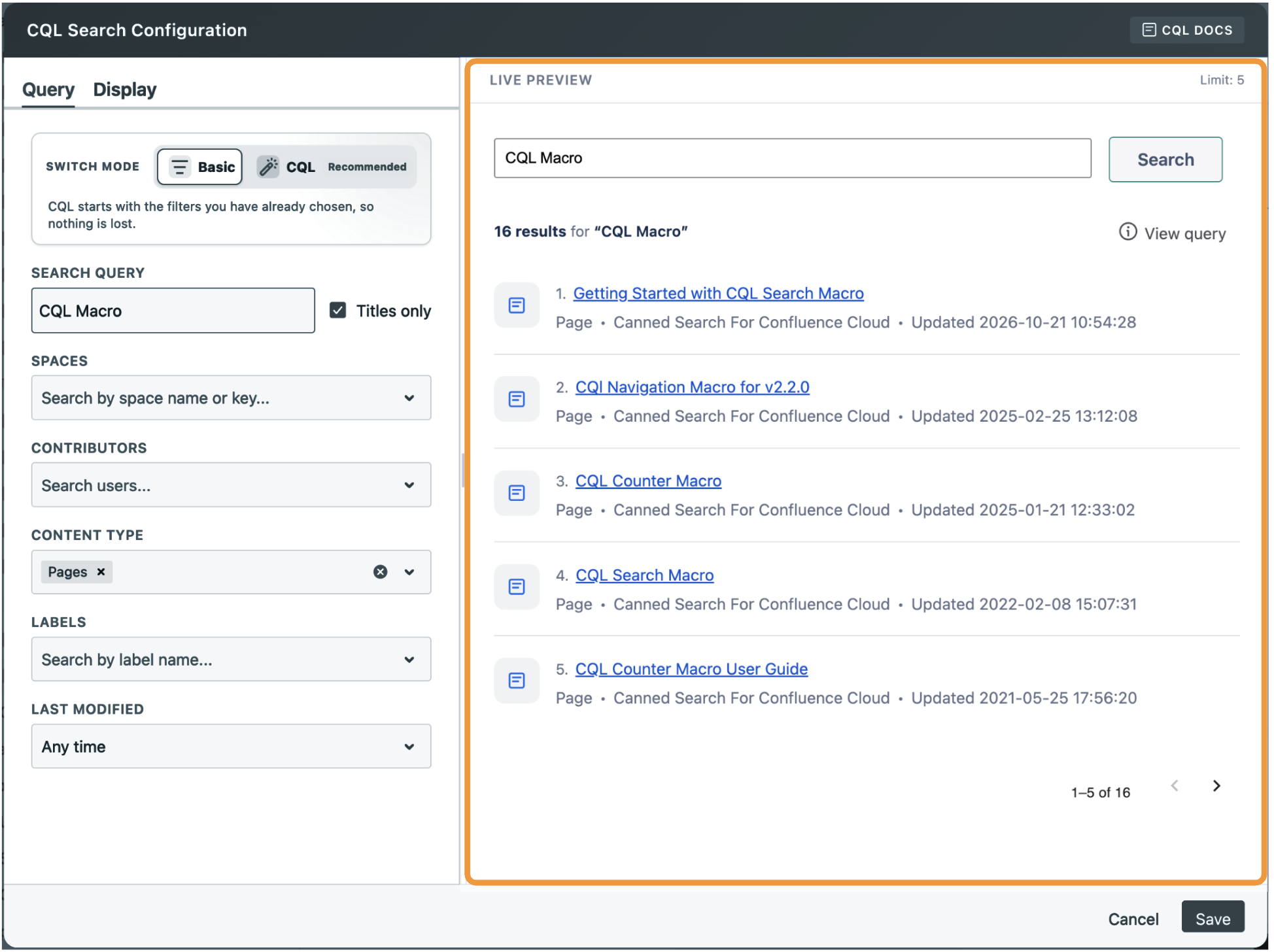
Configure macros in a full-screen editor with separate Query and Display tabs, a resizable live preview, and clearer save button.
-
Build searches using guided filters or edit CQL directly with dynamic variables and ready-to-use examples.
-
Preview and copy the executed CQL directly from the macro, or use the shortcut button to open it in Confluence search.
-
Register and validate the app license through Confluence administration.
CQL Search macro
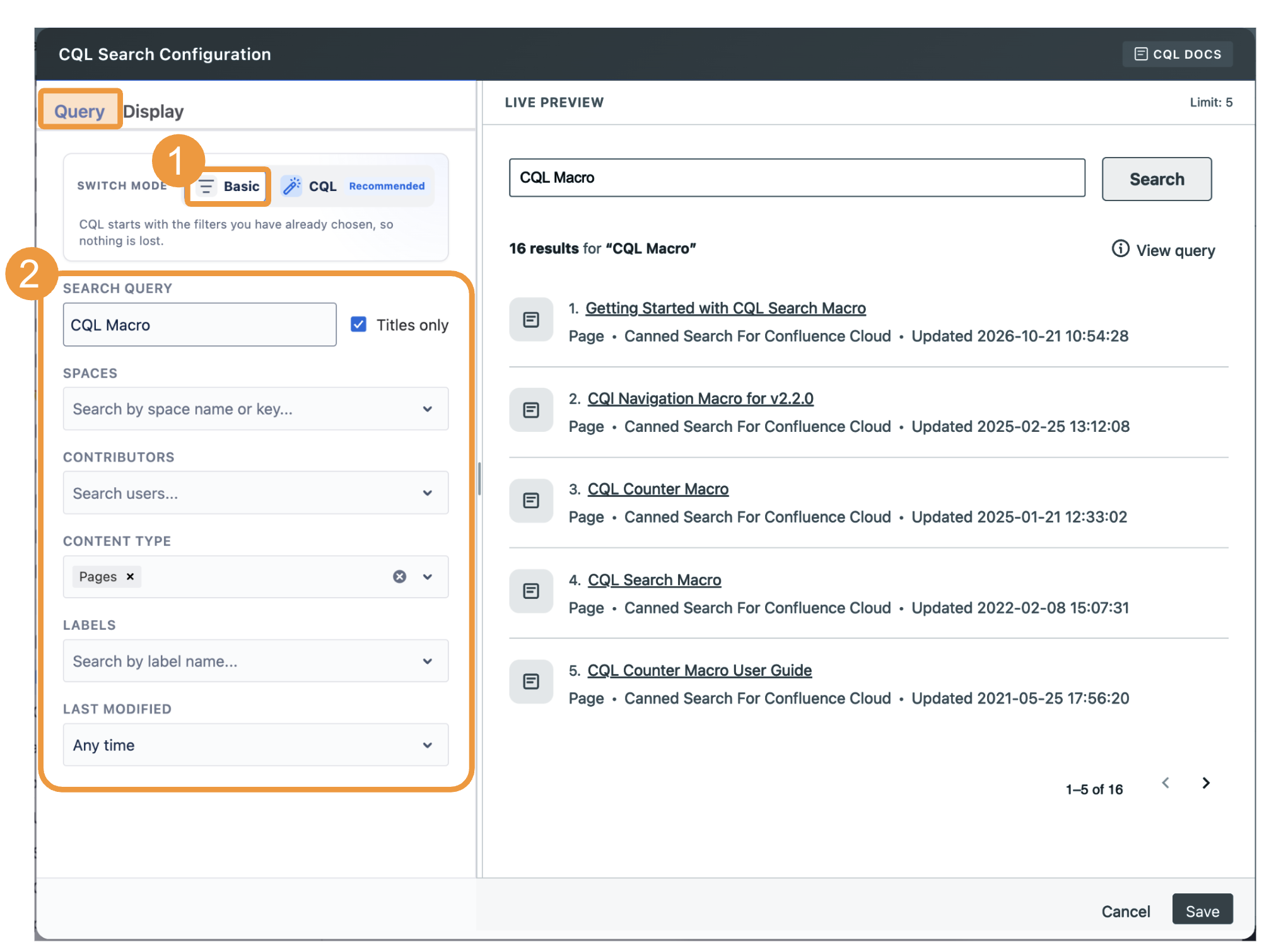
Basic Query Mode
-
Build searches using guided mode, with options to filter by search text, title, spaces, contributors, content types, labels, and last-modified dates.
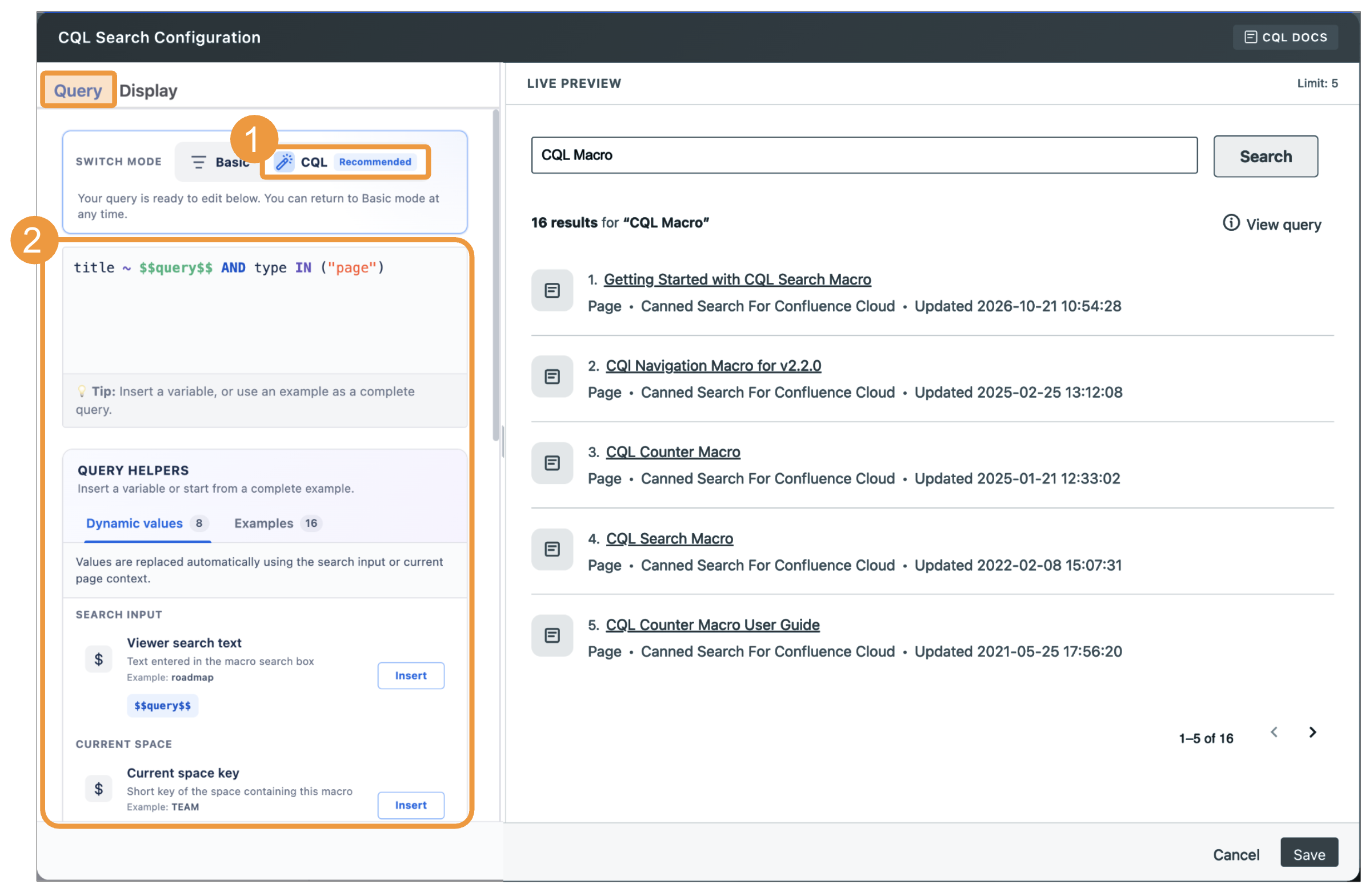
CQL Query Mode
-
CQL mode now includes syntax highlighting, insertable dynamic variables, and searchable examples.
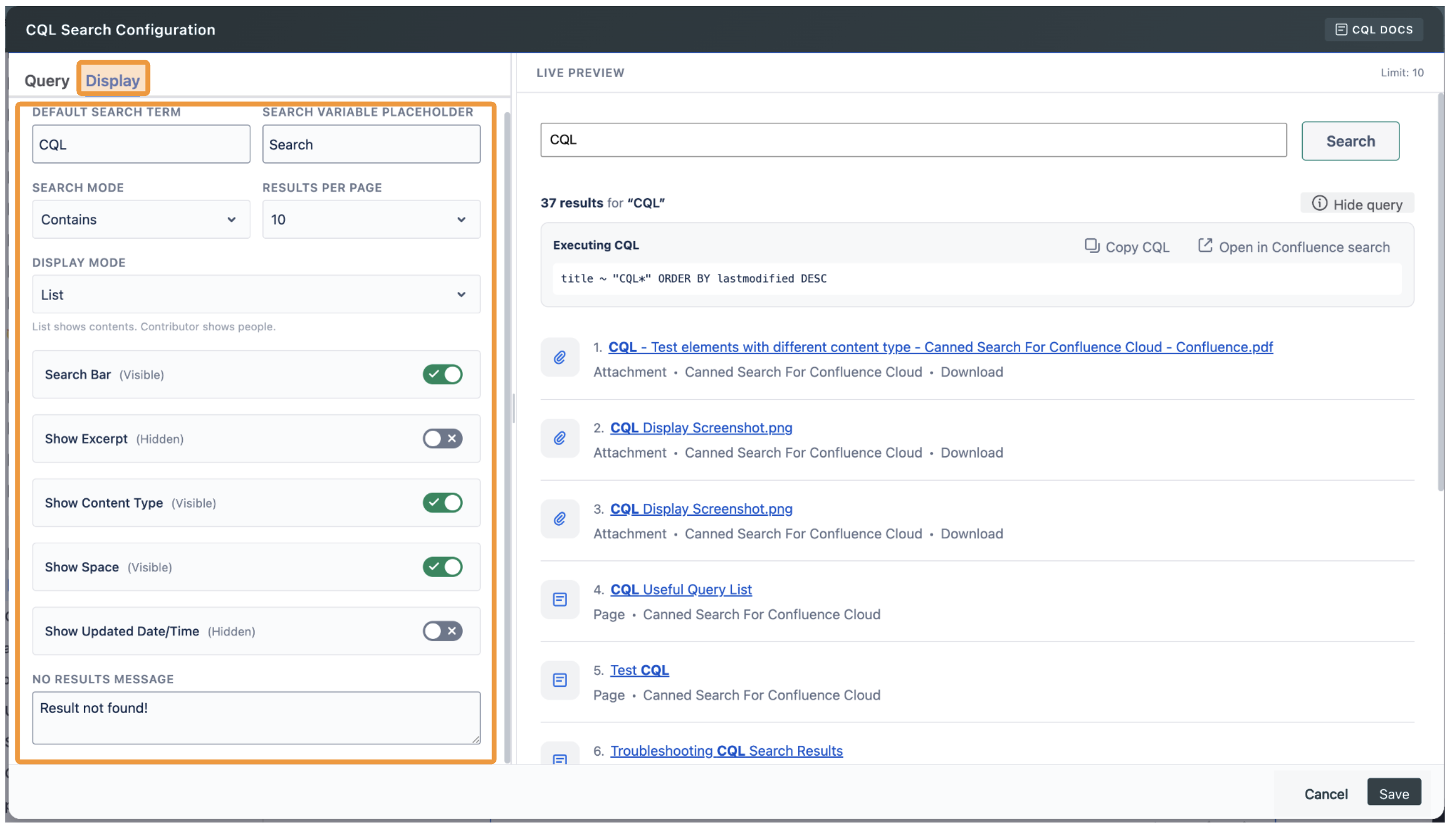
Display Configuration
-
Choose which details to display in list results; including excerpts, content type, space, and last-updated date and time.
-
View clearer content-type labels and icons in search results.
-
View the executed query, search term, and total number of matches directly in the published macro.
Live Preview
-
The live preview shows how your query and display settings affect the results.
Contributor Display Mode
-
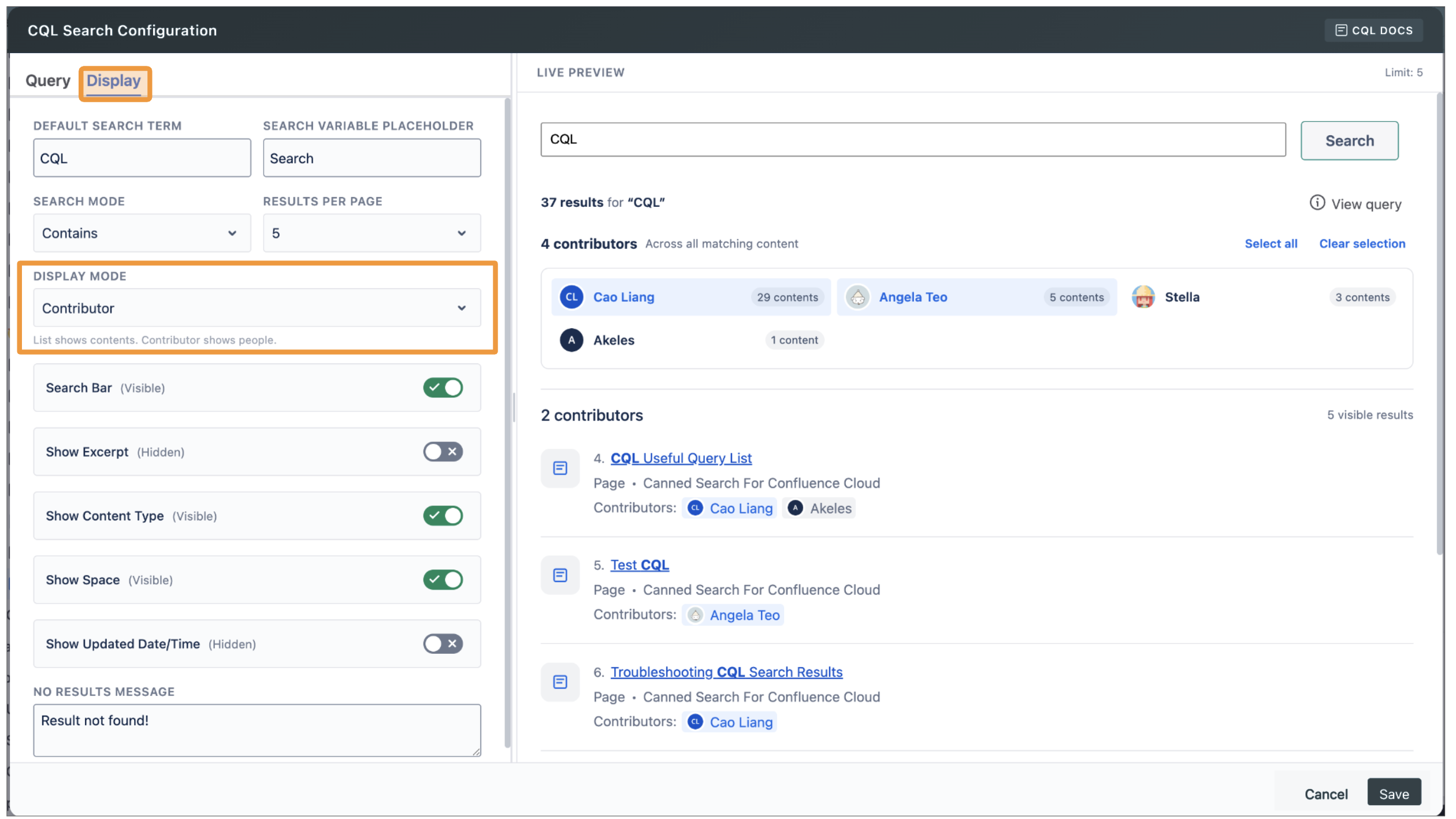
Contributor counts now reflect the entire result set, not just the current page.
-
Select contributors from the list to filter results, or use Select all and Clear selection to manage your selection.
-
View contributors for each content result, with long lists collapsed after five people.
CQL Search Table macro
Display Configuration
-
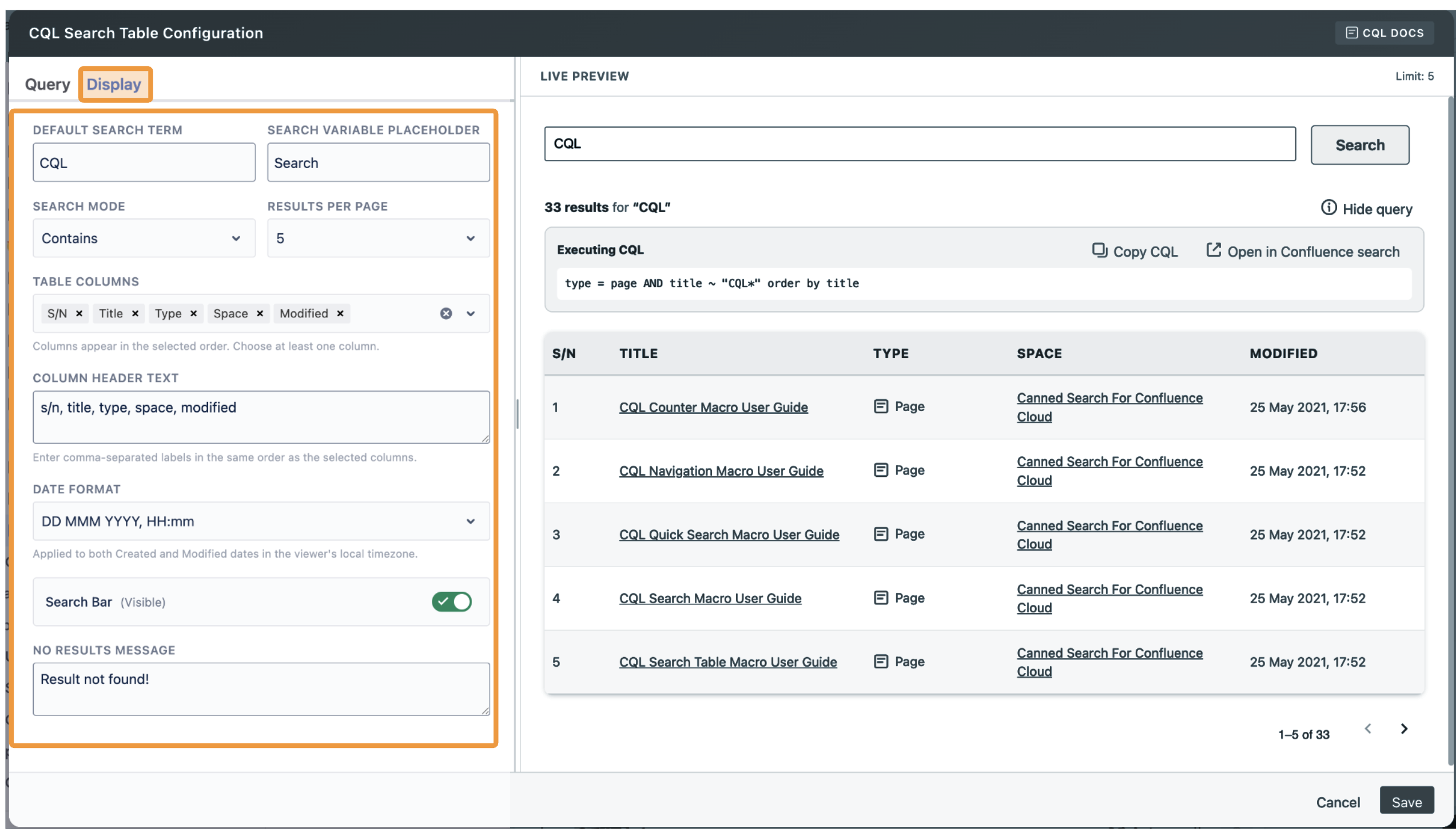
Select table columns from available options in the configuration form and drag and drop them to reorder, instead of entering them manually in a free-form field.
-
Choose from 12 column options: S/N, Title, Space, Type, Created, Modified, Creator, Modifier, Labels, Version, Comments, and Excerpt.
-
Choose from five date formats for the Created and Modified columns. Dates are displayed in the viewer’s local timezone.
CQL Search Table UI
-
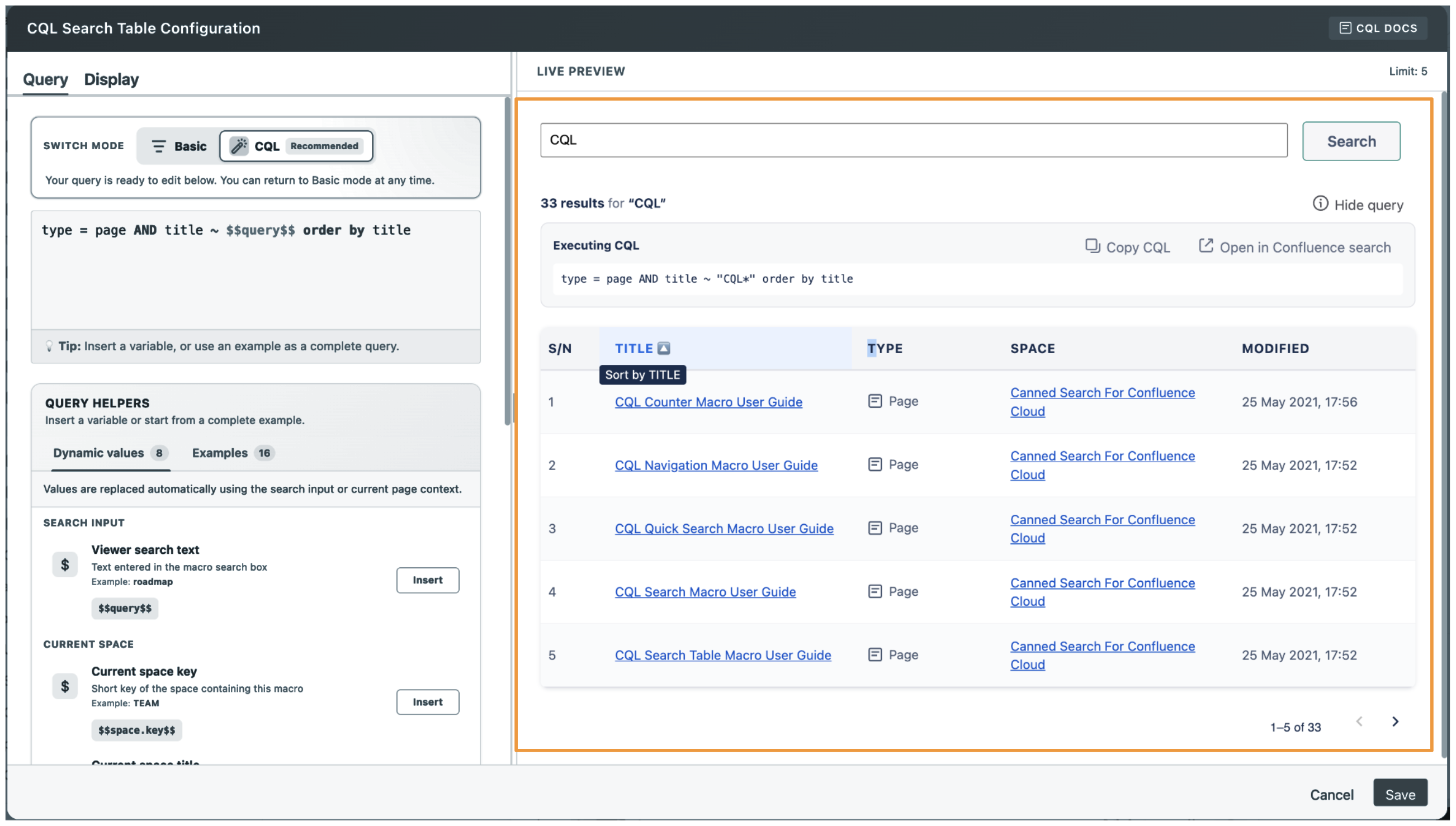
Tables use consistent column sizing and horizontal scrolling for wide configurations.
-
Viewers can sort the visible rows by selecting any column header.
-
The executed query and total match count can be inspected from the published macro.
CQL Counter macro
Display Configuration
-
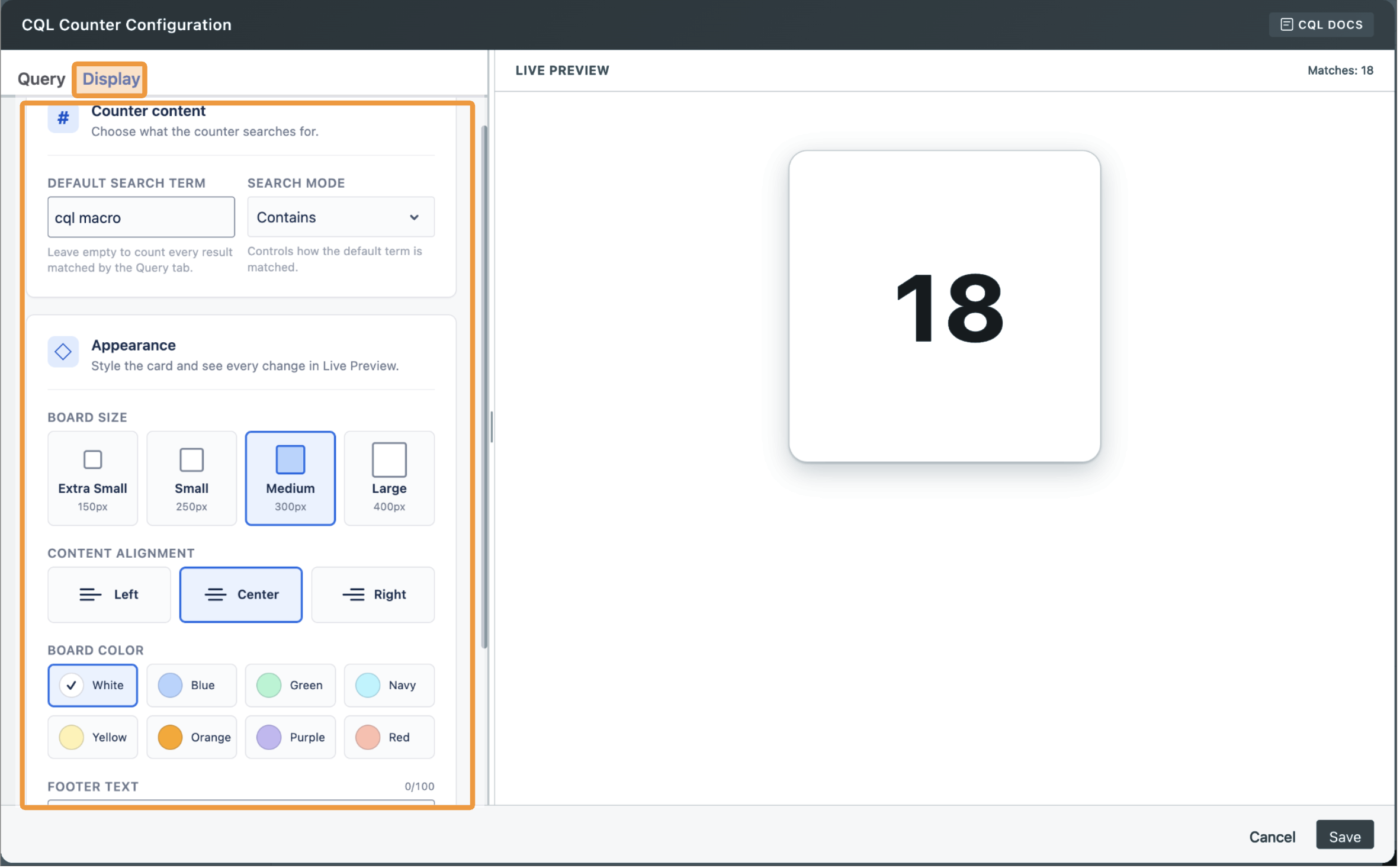
The counter is now displayed as an accessible card instead of a generated image.
-
Customise the board size, content alignment, board colour, footer text, and refresh settings.
-
Add optional footer text up to 100 characters. The card displays the first 16 characters, with the full text available in a tooltip.
CQL Counter Macro UI
-
Large counts are displayed as
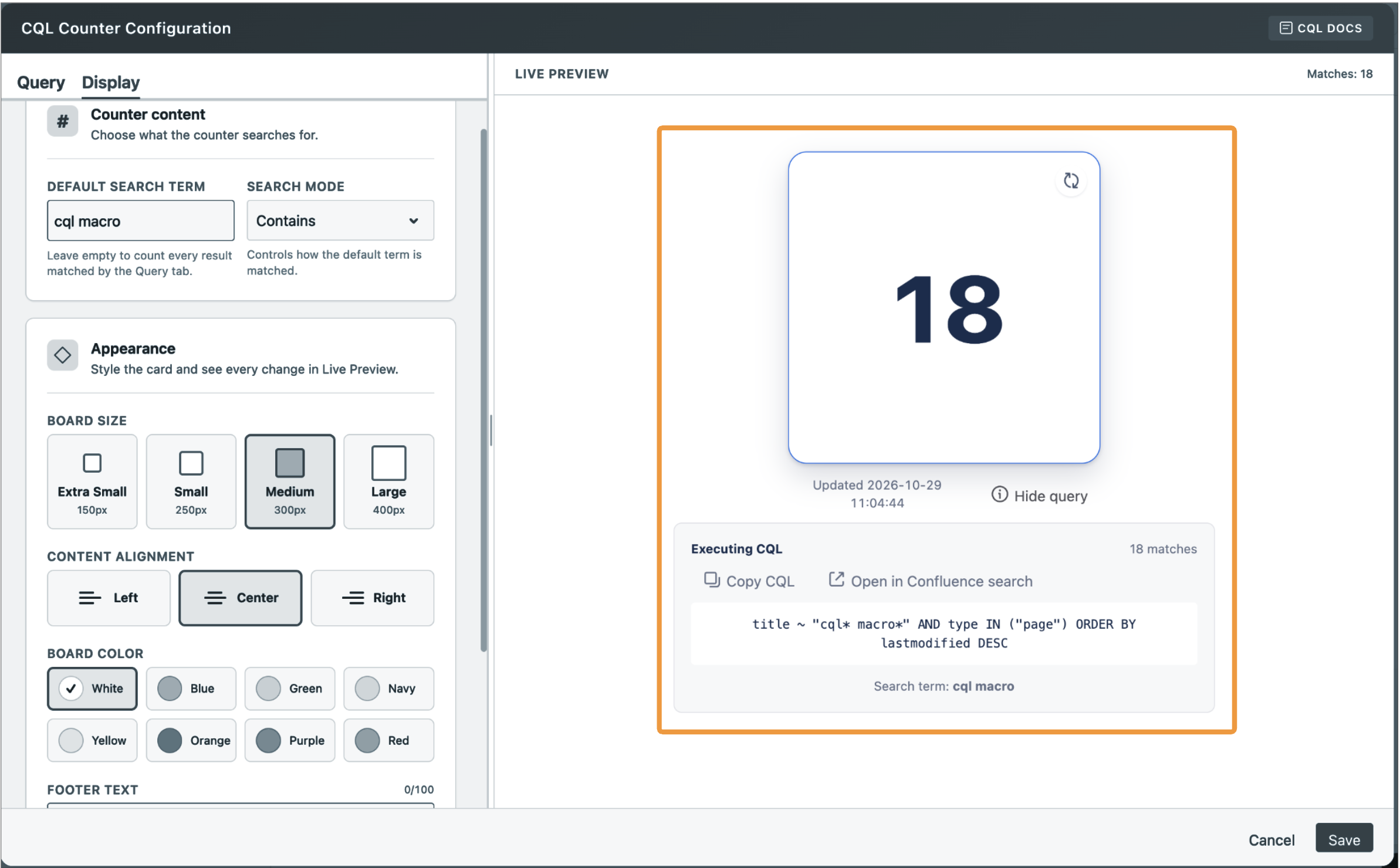
99999+; with the exact count available in the tooltip and query details. -
View the last-updated time and optionally display the executed CQL.
-
When refresh is enabled, click the card to refresh the count. If an error occurs, select Try again to retry.
CQL Navigation macro
Navigation Configuration
-
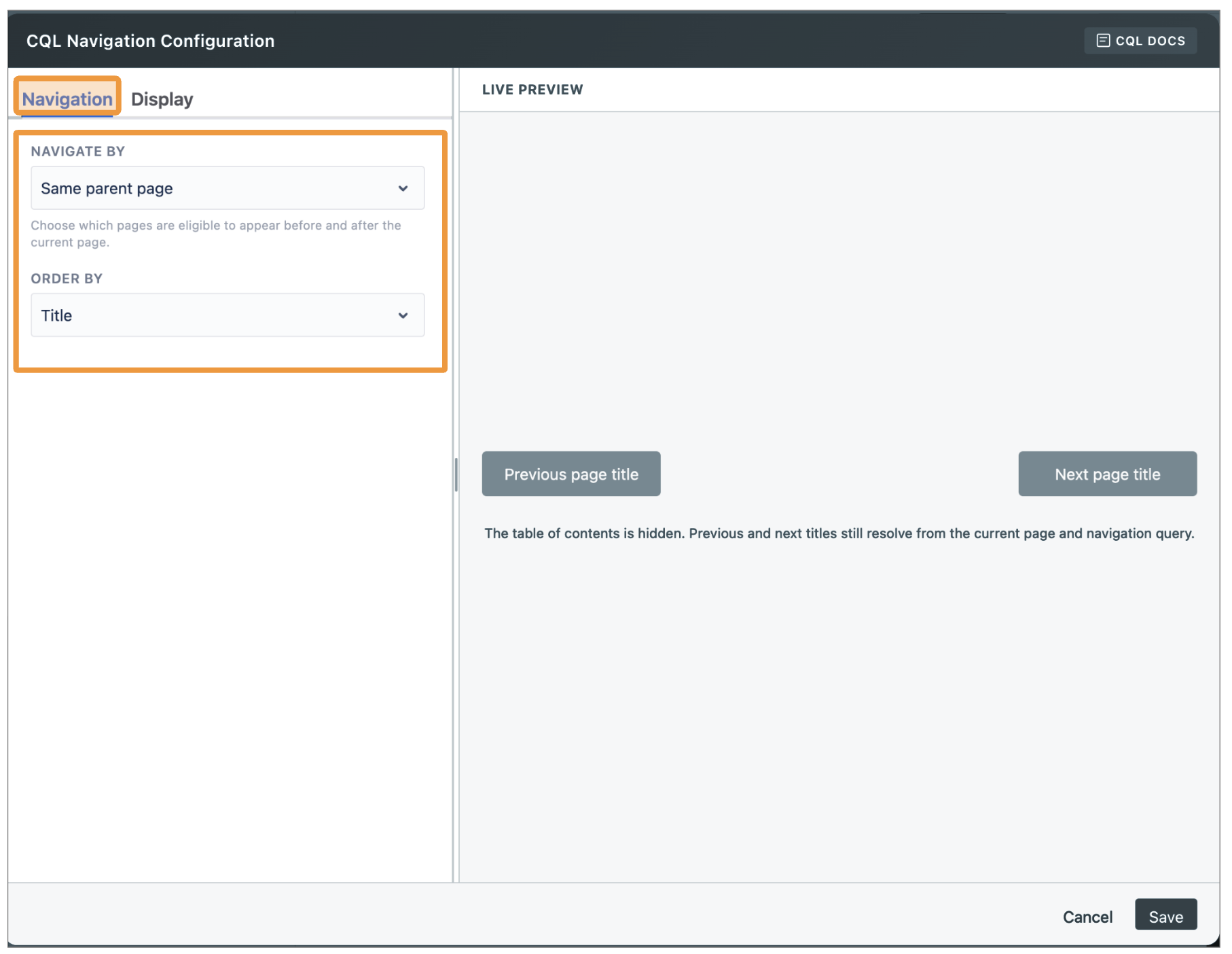
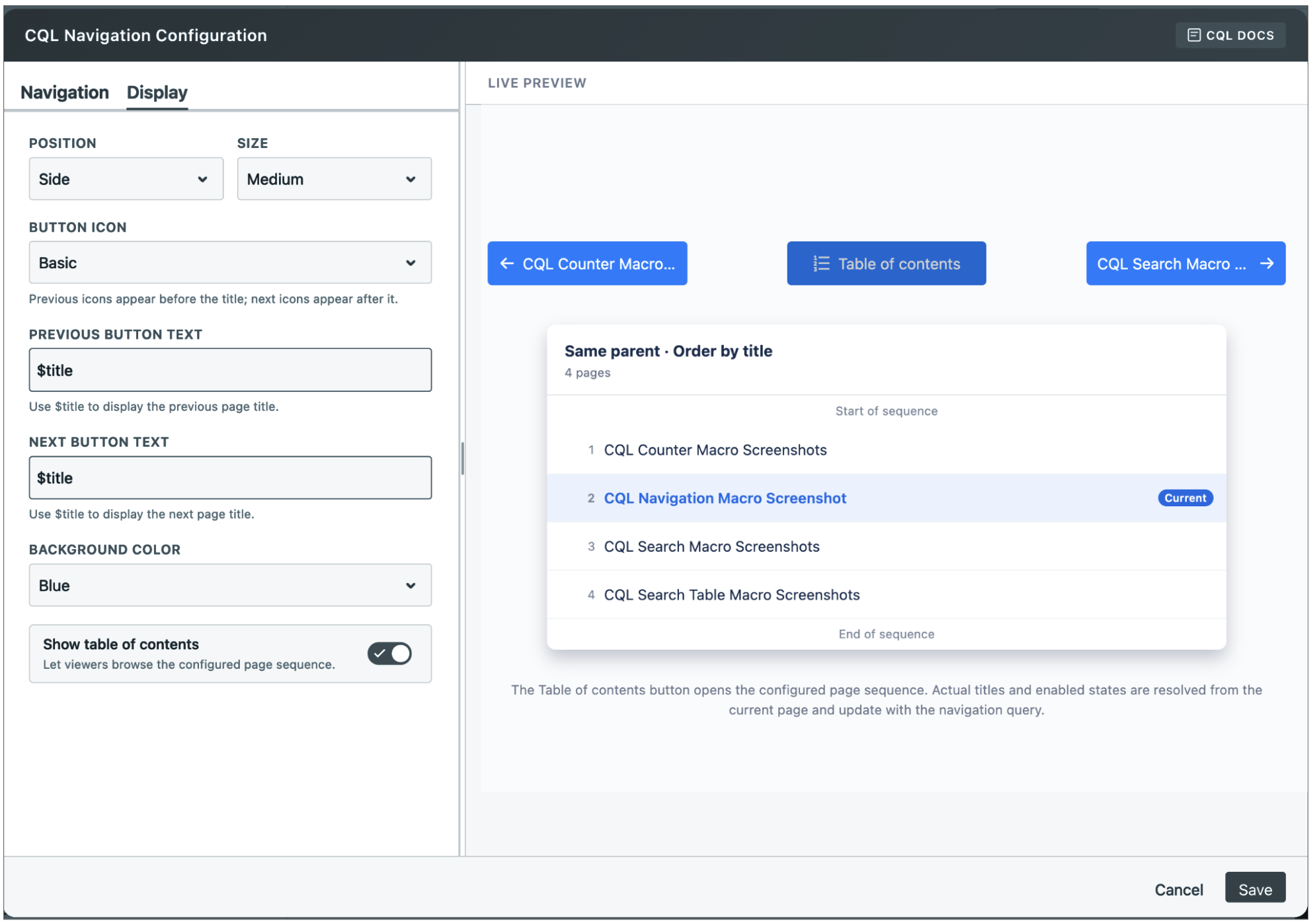
Configure the navigation bar macro to sort pages by their position under the same parent, creation date, last-modified date, or title.
Display Configuration
-
Page-position navigation follows the order set in the Confluence page tree.
-
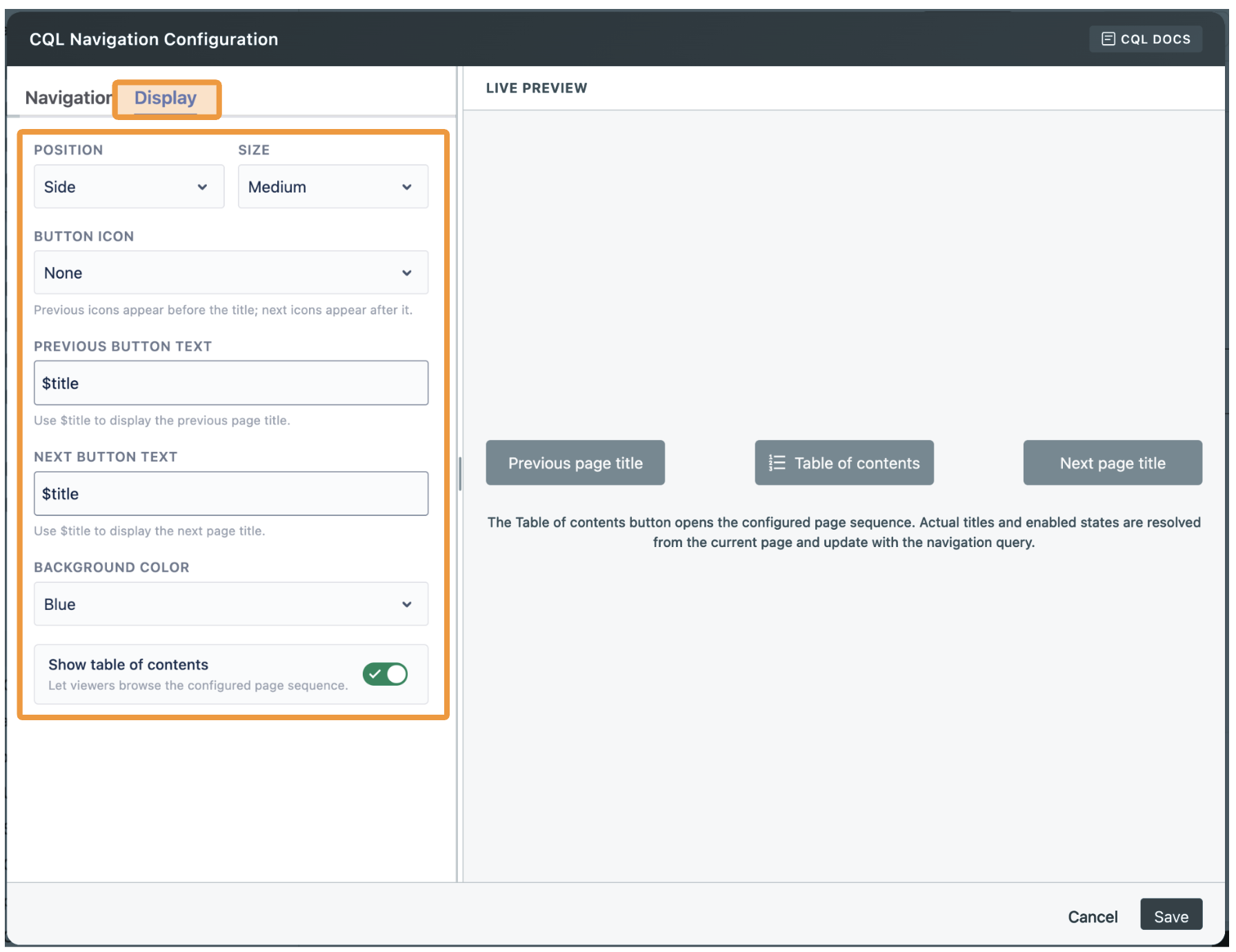
Choose from four icon styles for the Previous and Next buttons: None, Basic, Circle, or Chevron.
-
The Table of Contents button displays the configured page sequence, highlights the current page, and loads more pages as you scroll.
Live Preview
-
Configure navigation mode, page ordering, button position, size, text, and colour, with a live preview of the layout and table-of-contents behaviour.
Search this Space page
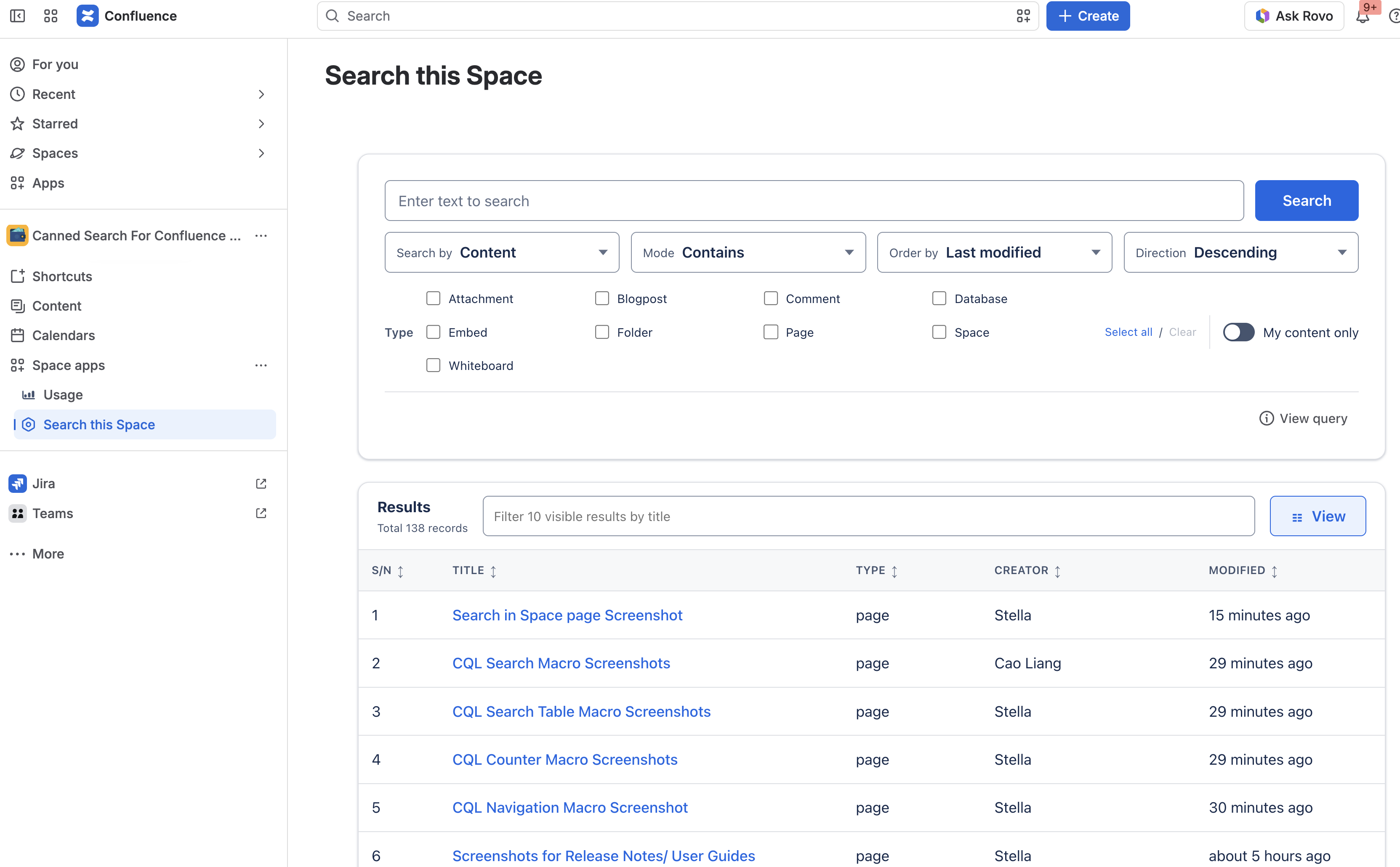
Search this Space is a space-level page, not an insertable macro.
-
Search across pages, blog posts, comments, attachments, whiteboards, databases, embeds, and folders.
-
Select or clear multiple content types from a single filter menu.
-
Show excerpts and image-attachment thumbnails when needed
-
Choose and reorder result columns.
-
Resize columns, sort results, and filter the current page by title.
-
View the CQL query generated by the search filters.