The Site Statistics for Confluence app will execute a search using the App Account to collate the figures in the report.
There are 2 common reasons that the numbers reported may be lower than the actual numbers.
-
Archived content - The Confluence Search REST API cannot search for archived content
-
Permission Access - The app does not have permission to access some spaces and content
How to check if Site Statistics for Confluence app has the correct permissions
You can verify if the app has permissions to access the Confluence spaces using the steps below.
If the app does not have access to all the Confluence spaces, you need to bulk update the access in order to have accurate measurement of the site statistics.
For Confluence Admins
As a Confluence Cloud Admin, you can do a user access audit to get a high level view what an app can access in Confluence.
-
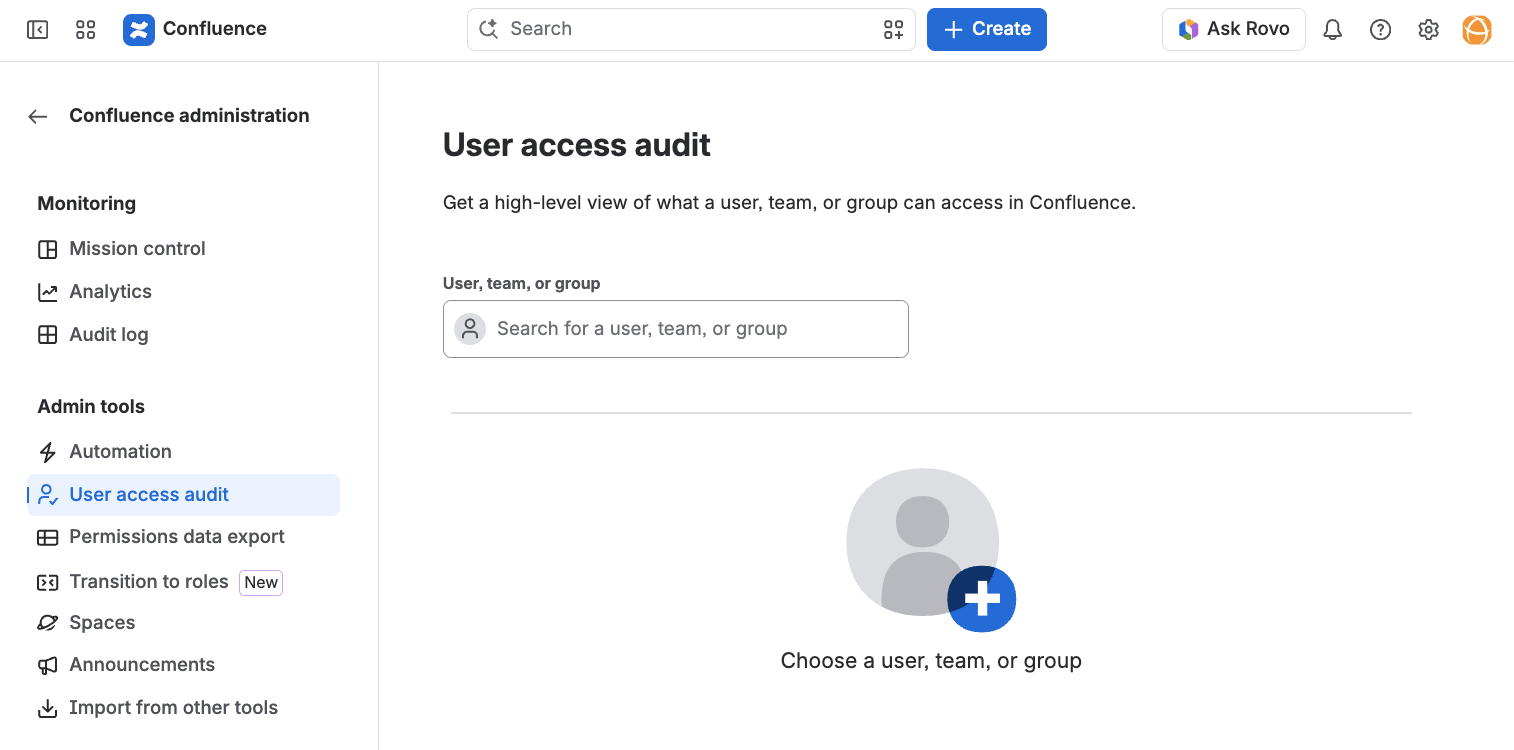
Go to Confluence Administration
-
Go to Admin tools > User access audit
-
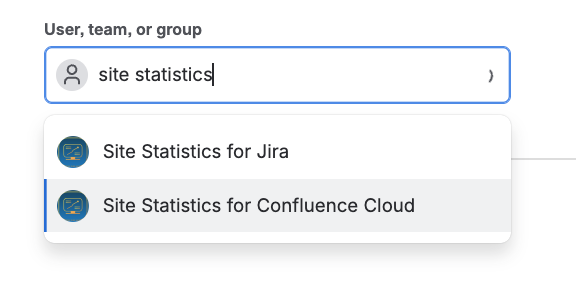
Type in Site Statistics for Confluence Cloud in the User, team, or group field to locate the app
-
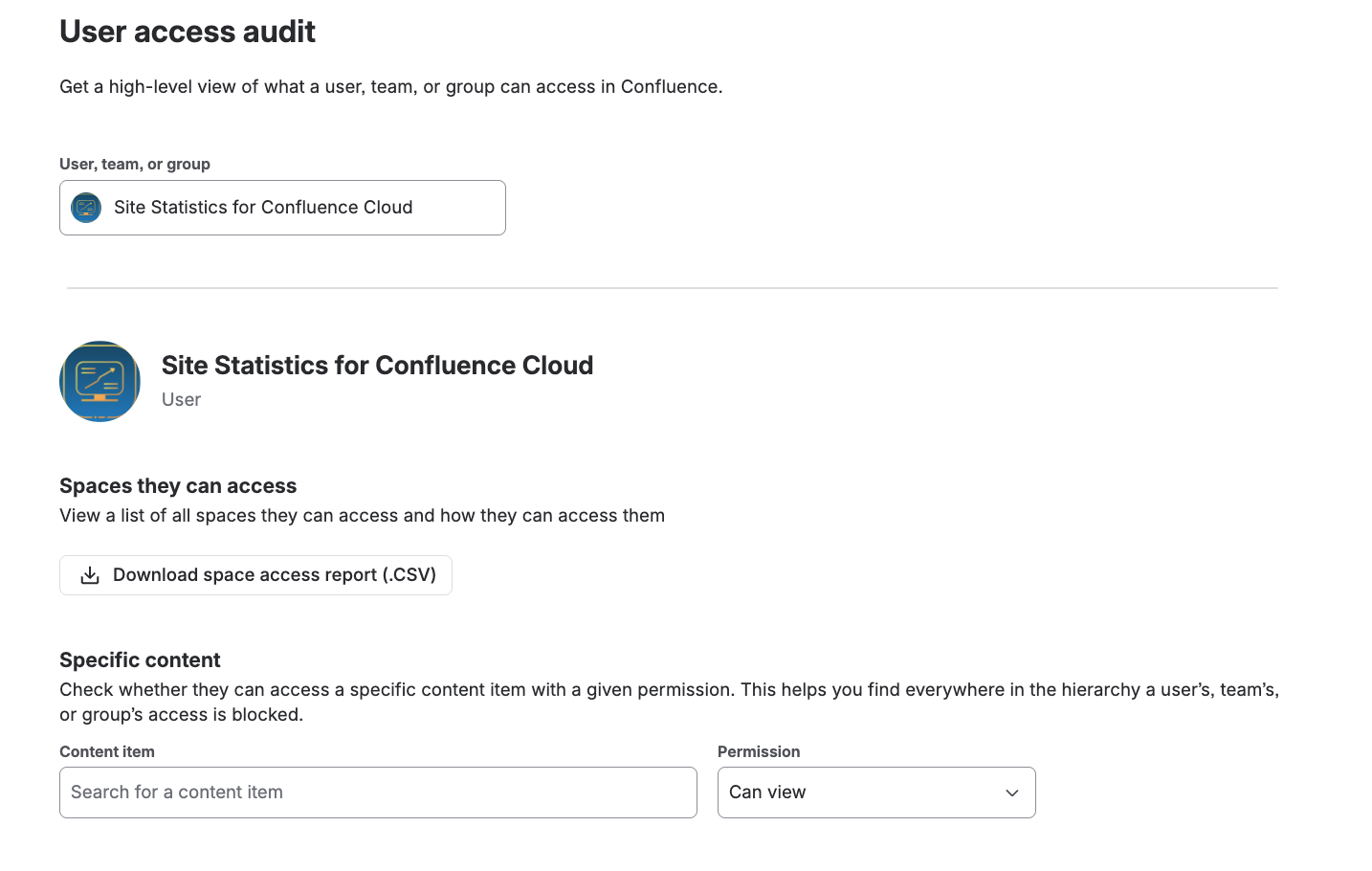
Click on Download space access report (.CSV) button
The Access Report consists of the following info
-
Space ID
-
Space Name
-
Space Key
-
Space Type
-
Space Status
-
Access Level
-
How the app managed to get access
-
As Individual User
-
As Member of Group or Team
-
As Member of User Class
-
For Space Admins
As a Confluence Cloud Admin or Confluence Space Admin, you can verify if the app has permissions to access the Confluence space
-
Access the Space settings option from the space
-
Click on Users option from the left sidebar
-
Search for the Site Statistics for Confluence Cloud user
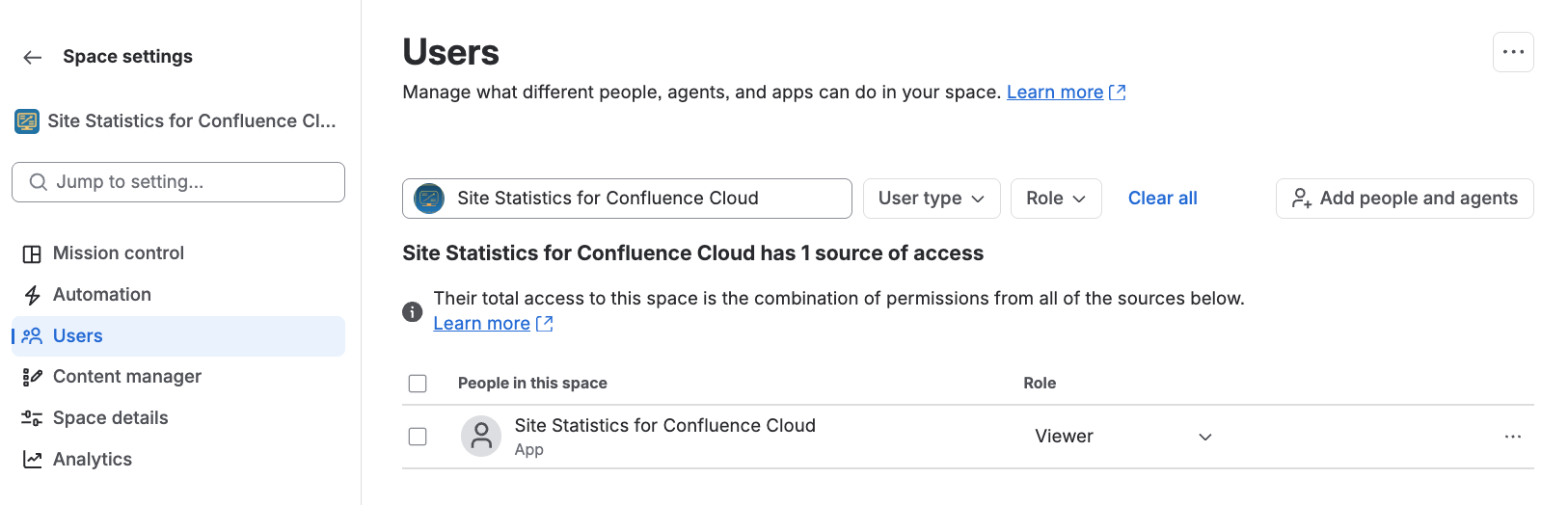
You can update to Viewer role since the app does not need to update any content in the Confluence space.
How to grant permissions for multiple Confluence spaces
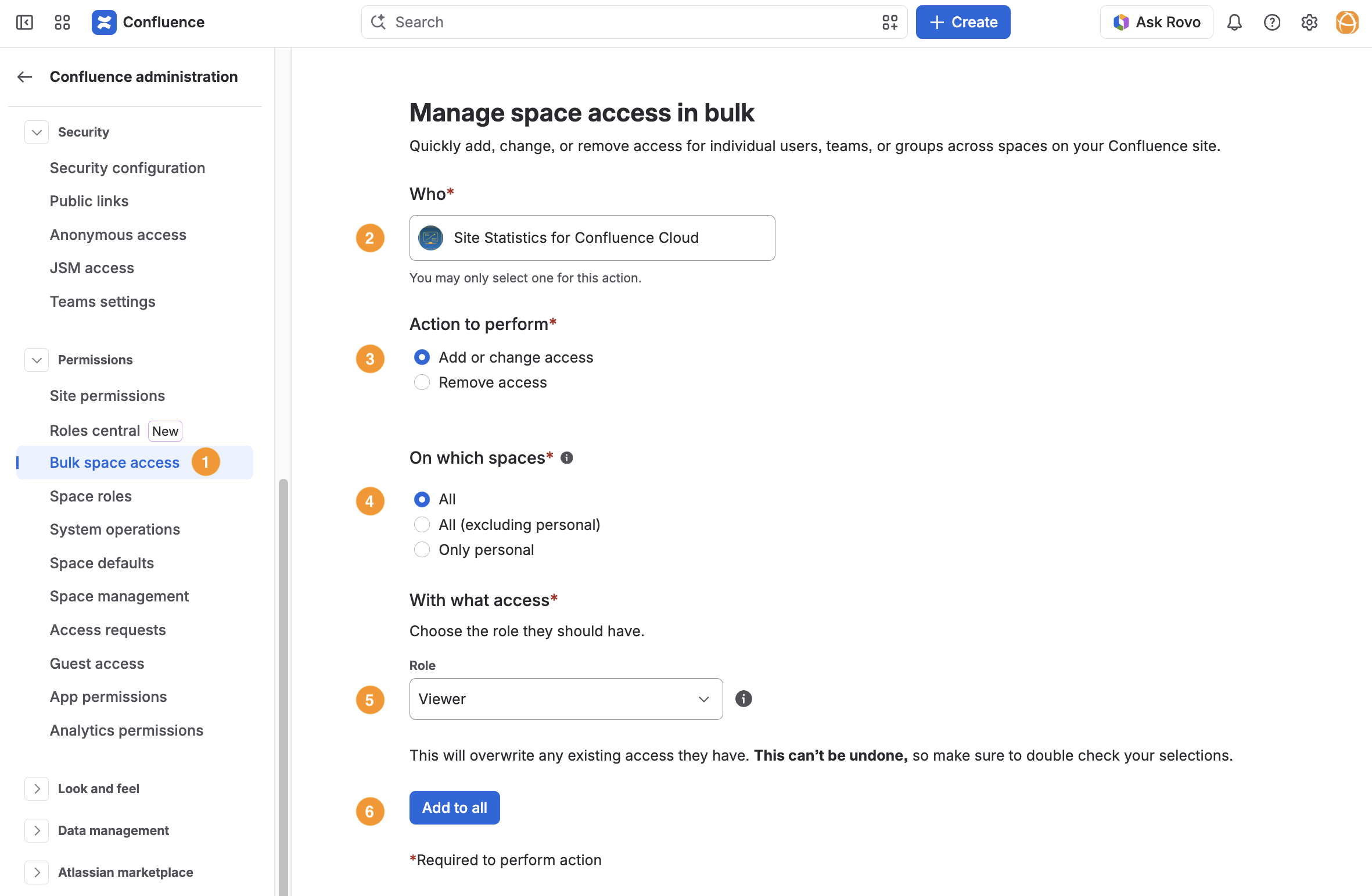
You can use the Bulk Space Access to grant the Site Statistics for Confluence app access to all the Confluence spaces.
-
Access Confluence Administration > Permissions > Bulk space access.
-
Select Site Statistics for Confluence Cloud app for the Who
-
Choose Add or change access for the Action to perform
-
Choose All spaces
-
The Viewer role should be sufficient
-
Click Add to all button to execute the bulk update
-
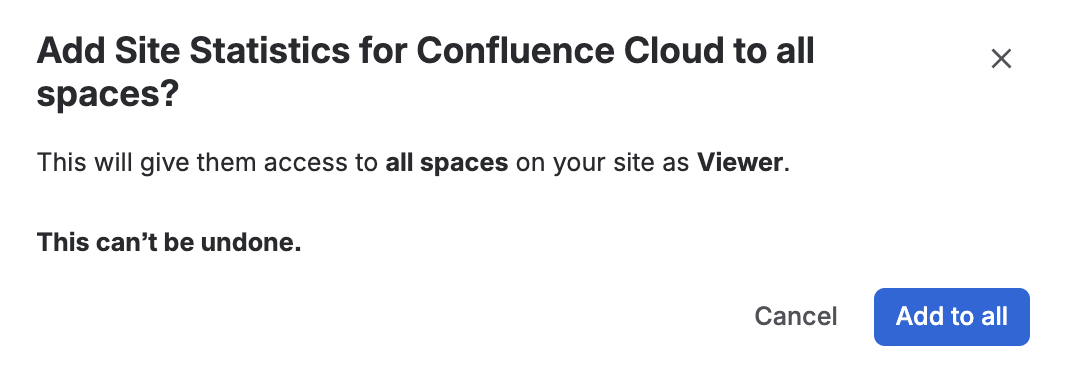
Click Add to all button in the popup to confirm again
-
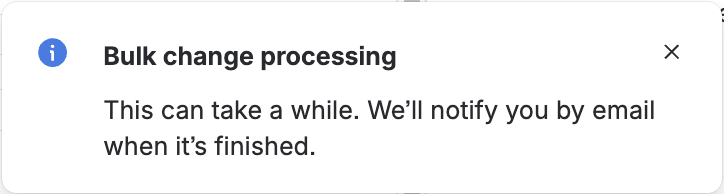
The bulk change processing may take a while for the permissions to be updated